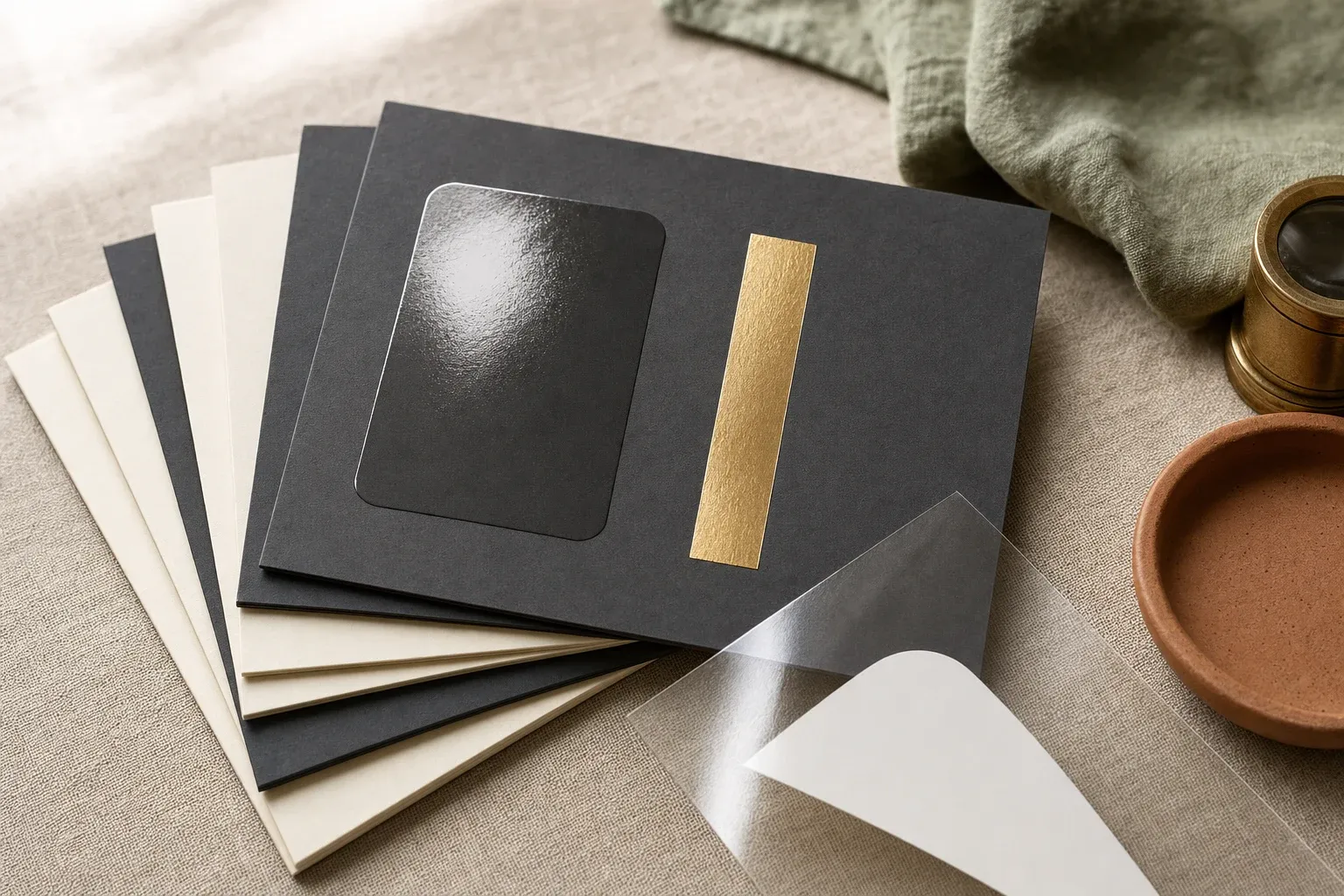
A client approves a business card with a glossy raised logo, a gold foil name and a soft-touch matt background. The proof looks perfect on screen. The cards come back with the logo glossed but the photo underneath gone white, the foil spreading into the counters of the lowercase e, and a thin cream line around the name where the foil missed. Every one of those faults was in the file. None of them showed on the PDF the client signed off, because a screen proof cannot show a separation.
Special finishes — spot colours, white ink, foil and spot UV — are the most expensive line on a print quote and the most common reason a file bounces back from prepress. Each has its own plate, die, screen or channel, so each has to be built as a separate, named, correctly overprinted layer the printer's RIP (raster image processor) can isolate. Get the structure wrong and the job either gets rejected, waits a day in the printer's prepress queue at their hourly rate, or prints wrong at full run cost. On a 5,000-unit carton with hot foil, a mistake in the foil file can mean scrapping a magnesium die and the stock it ran on.
Most guides on this cover one finish for one printer — how Mixam wants spot UV, how one label converter wants white. This guide treats the four finishes as one system, because they share a single underlying logic. Once you understand that logic, you can set up any finish for any printer. You will get:
- the one rule that governs every special finish layer
- a layer architecture that works across Illustrator, InDesign and Affinity
- swatch naming by finish and by common RIP, so plates separate first time
- when to overprint and when to knock out, finish by finish
- minimum line weights, gaps and text sizes for each process
- how to build and choke a white underbase, and when white goes first or last
- what happens when finishes overlap, and the production order that decides it
- a separation preflight that catches every mistake above before the plates are made
Building finish files for clients, every week? Digital Polo prepares print-ready design files with spot UV, foil, white ink and spot colour separated to each printer's spec, on a flat monthly plan. Printers and resellers can run it under their own brand through white-label design. Book a 15-minute call to see how the queue works.
The short answer
Every special finish is a named spot colour, at 100 per cent, on its own layer, set to overprint, at the same size and bleed as the artwork — and the name must match what the printer's RIP expects. Before you send it, open the PDF's separations and check that each finish appears as its own plate, exactly where you intended and nowhere else.
That is the whole system. The rest of this guide is the detail of each part: what to name it, when overprint becomes knockout, how thin is too thin, and what happens when two finishes meet.
Why finishes fail at the file, not the press
A CMYK press reads four plates. Everything you design — photos, type, flat colour — is broken down into cyan, magenta, yellow and black at the RIP. A special finish is a fifth (or sixth, or seventh) channel that is not made of those four inks at all. Spot UV is clear varnish. Foil is a metallic film. White ink is opaque pigment. A Pantone spot is a pre-mixed ink in its own well.
The RIP can only produce that extra channel if the file tells it, unambiguously, which pixels or vectors belong to it. It does that by reading spot colour separations — named colour channels that travel through the PDF independently of CMYK. Four things break that chain:
- The finish is drawn in a process colour. A "spot UV" layer filled with 100 per cent magenta separates onto the magenta plate and prints pink.
- The finish has the wrong name. The RIP is configured to map a channel called
Spot UVto the varnish unit. A channel calledspotuv,UV GlossorPANTONE 801 Ceither prints as an ink or is discarded. - The finish knocks out the artwork. The application's default is that the top object hides what is beneath it — so the CMYK plates get a hole the exact shape of the varnish.
- The export flattens the spot to process. One wrong setting in the PDF dialogue converts every named channel into CMYK, and the finish silently disappears.
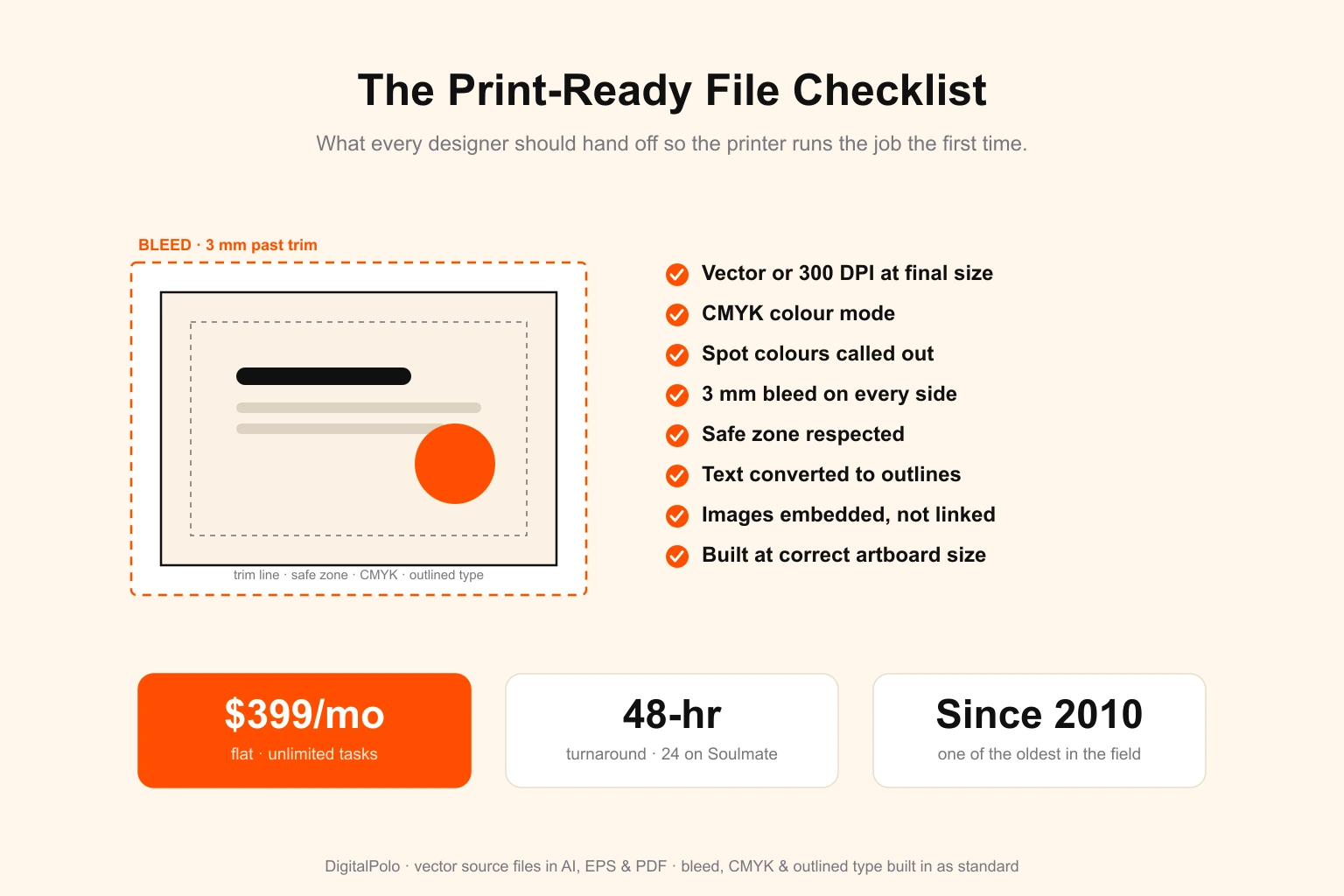
None of these is visible in a normal on-screen preview, which renders spot colours as their screen swatch and composites everything together. That is why the print-ready file checklist treats spot colour callouts as a line item, and why this guide ends with a separation check rather than a visual one.
The four finishes in one table
Before building anything, be clear what each finish physically is, because that decides how it behaves in the file.
| Finish | What it physically is | How it is applied | What the file must give the printer |
|---|---|---|---|
| Spot colour | A pre-mixed ink (usually Pantone) in its own press unit | Offset, flexo, screen or digital with extended gamut | Named spot swatch per ink; tints allowed |
| White ink | Opaque white pigment | Digital (HP Indigo, UV flatbed, eco-solvent), screen, flexo, DTF | Named spot channel mapped to the white unit; underbase choked |
| Foil | Metallic or pigment film transferred by heat or adhesive | Hot foil stamping (die), cold foil (inline), digital foil over toner | 100% solid vector shape per foil colour; no tints |
| Spot UV | Clear UV-cured varnish on selected areas | Screen, offset coater, or inkjet digital embellishment (flat or raised) | 100% solid shape on a named varnish channel, or a separate mask file |
Three of the four — white, foil and spot UV — are on or off. There is no 40 per cent foil. Only spot inks behave like normal colour with tints and blends. That single distinction drives most of the rules that follow.
Layer architecture: build the file once, export for any printer
The most reliable way to build a finish file is a fixed layer stack you use on every job, with each finish isolated, named and locked once it is approved. It costs nothing to set up, and it means anyone in the studio — or your outsourced designer — can open any file and know immediately where everything is.
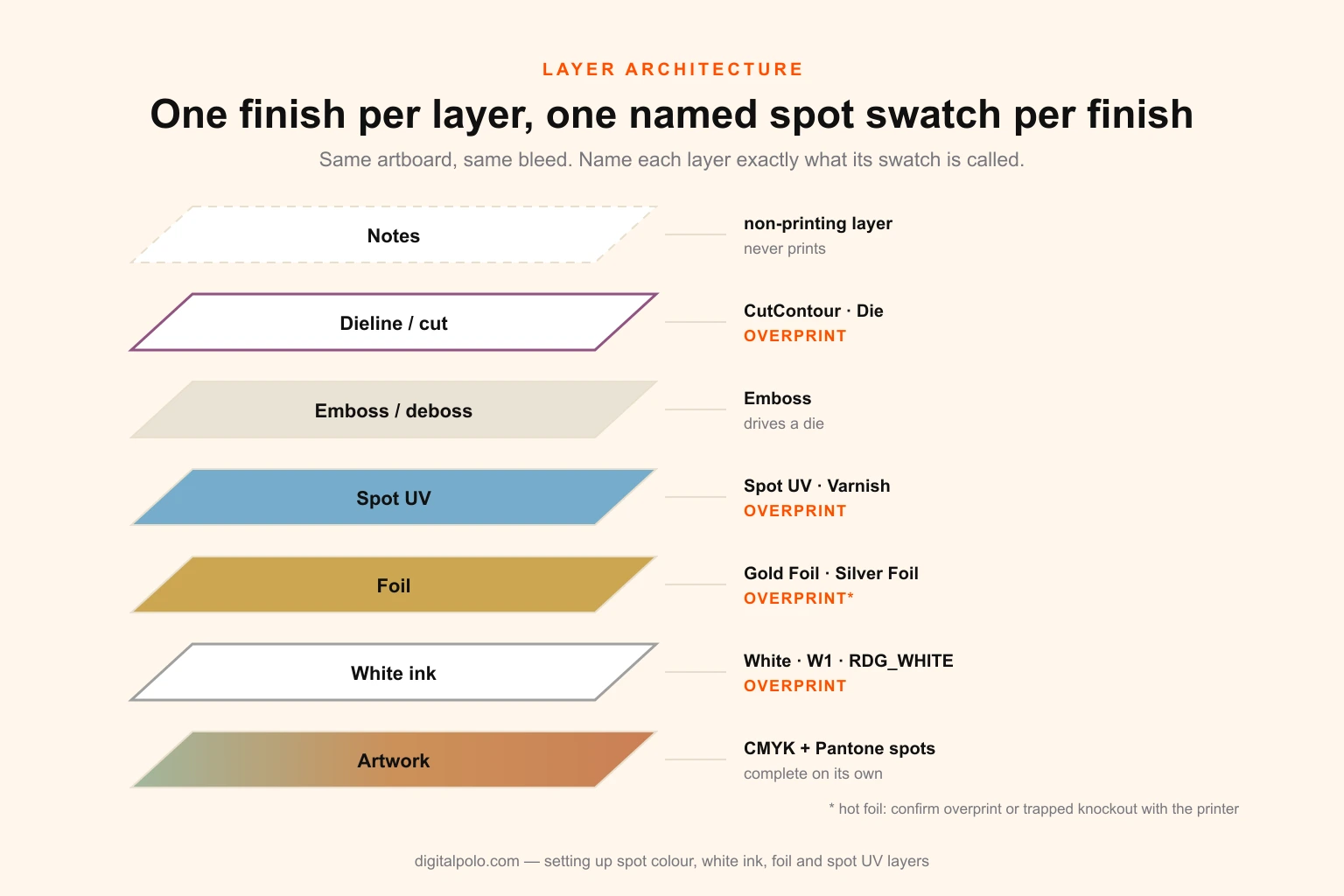
One finish per layer, one named swatch per finish, every finish layer set to overprint. The artwork layer underneath stays complete as if the finishes did not exist.
From bottom to top:
- Artwork — CMYK, plus any Pantone spot inks. This layer must be complete on its own; nothing above it should be relied on to hide something.
- White — the white underbase or spot white, only on non-white substrates.
- Foil — one sub-layer per foil colour (gold, silver, holographic each need their own die or pass).
- Spot UV — the varnish areas.
- Emboss / deboss — if the job has it; drives a separate die.
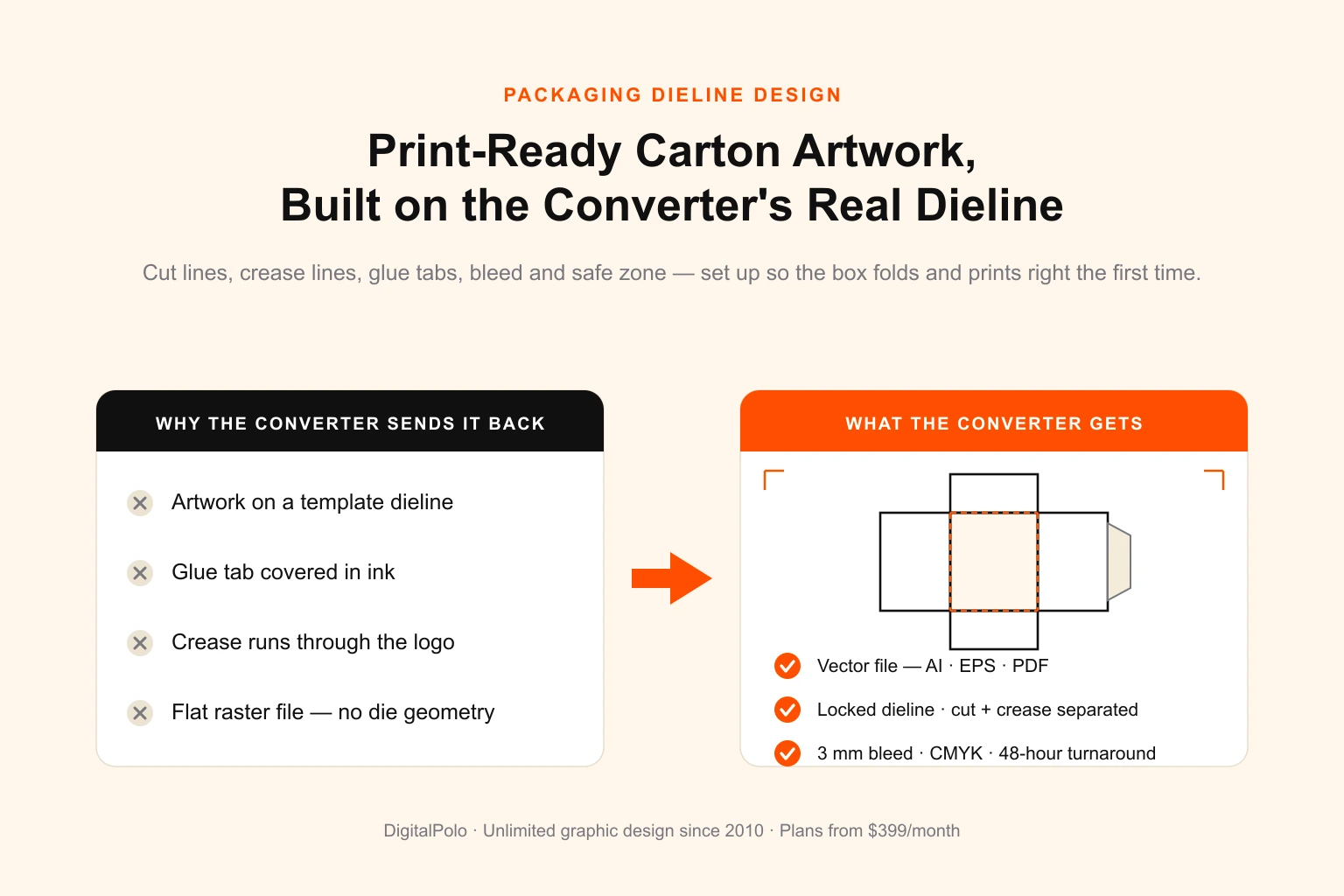
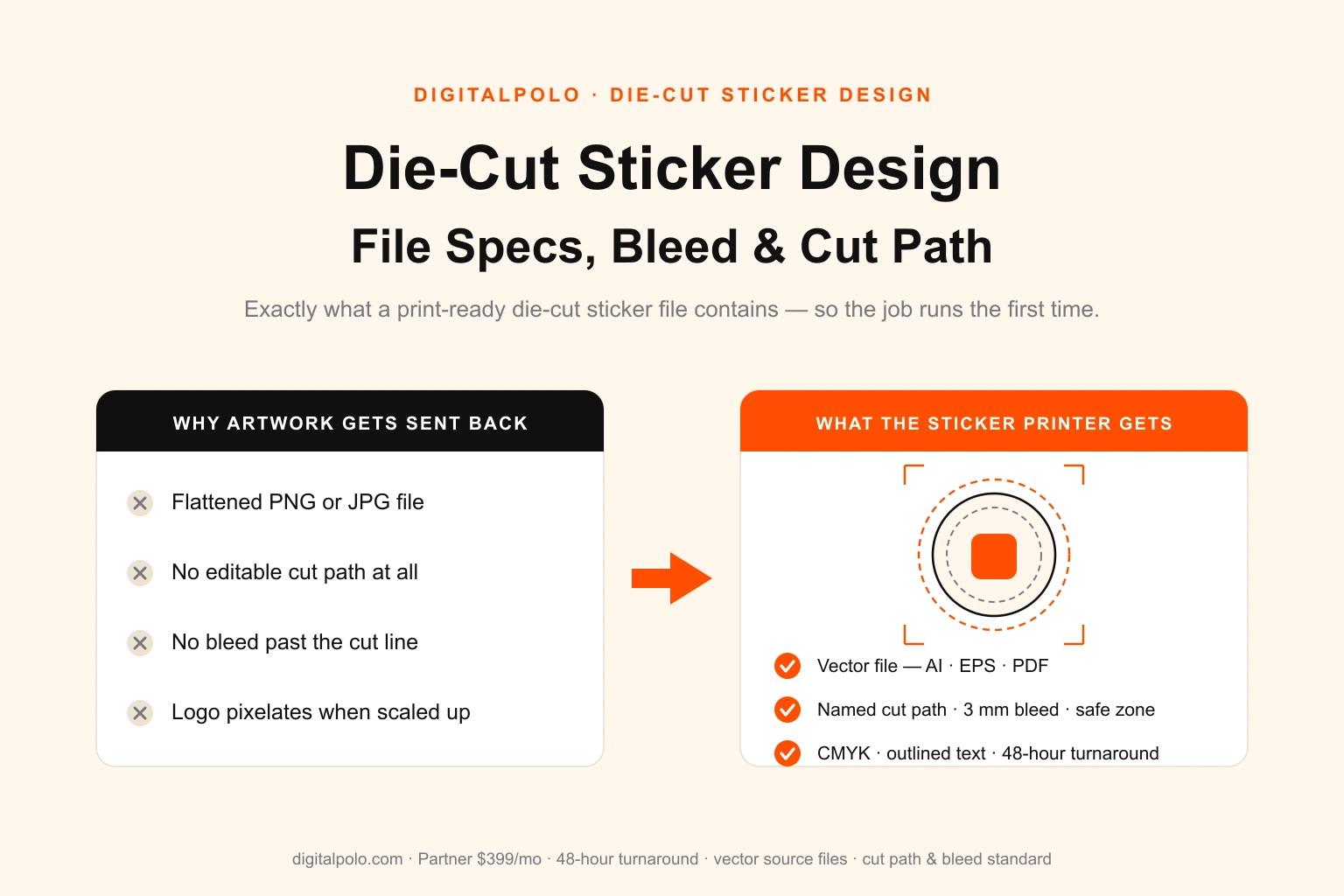
- Dieline / cut — cut, crease and perforation lines, as described in our packaging dieline guide and the die-cut sticker file specs.
- Notes — non-printing instructions, set as a non-printing layer so it never reaches a plate.
Some rules that make the stack work:
- Name the layer and the swatch the same thing. If the layer is called
Spot UV, the swatch isSpot UV. When someone exports a mask file six months later, there is no guesswork. - Copy, do not redraw. If the spot UV should sit exactly on the logo, copy the logo artwork and paste in place (Edit → Paste in Place in Illustrator; Edit → Paste in Place in InDesign) onto the finish layer, then recolour it. Redrawn shapes drift.
- Outline type on finish layers. Live text on a foil or varnish layer can reflow or substitute a font at the printer. Keep an editable copy on the hidden notes layer.
- Keep finish layers vector. Spot UV can be raster (some printers accept a 1-bit or greyscale bitmap at 600 ppi or higher for complex textures), but vector is sharper and smaller. Foil should always be vector.
- Lock approved layers. It stops a late nudge to the artwork from leaving the foil 0.5 mm behind.
Swatch naming: the step that decides whether a plate exists
Every printer's RIP is configured to look for specific channel names, and the name is case- and spelling-sensitive. A mismatch is the single most common reason a finish file gets bounced. The fix is mechanical: ask the printer for their exact names before you start, and put them in the brief.
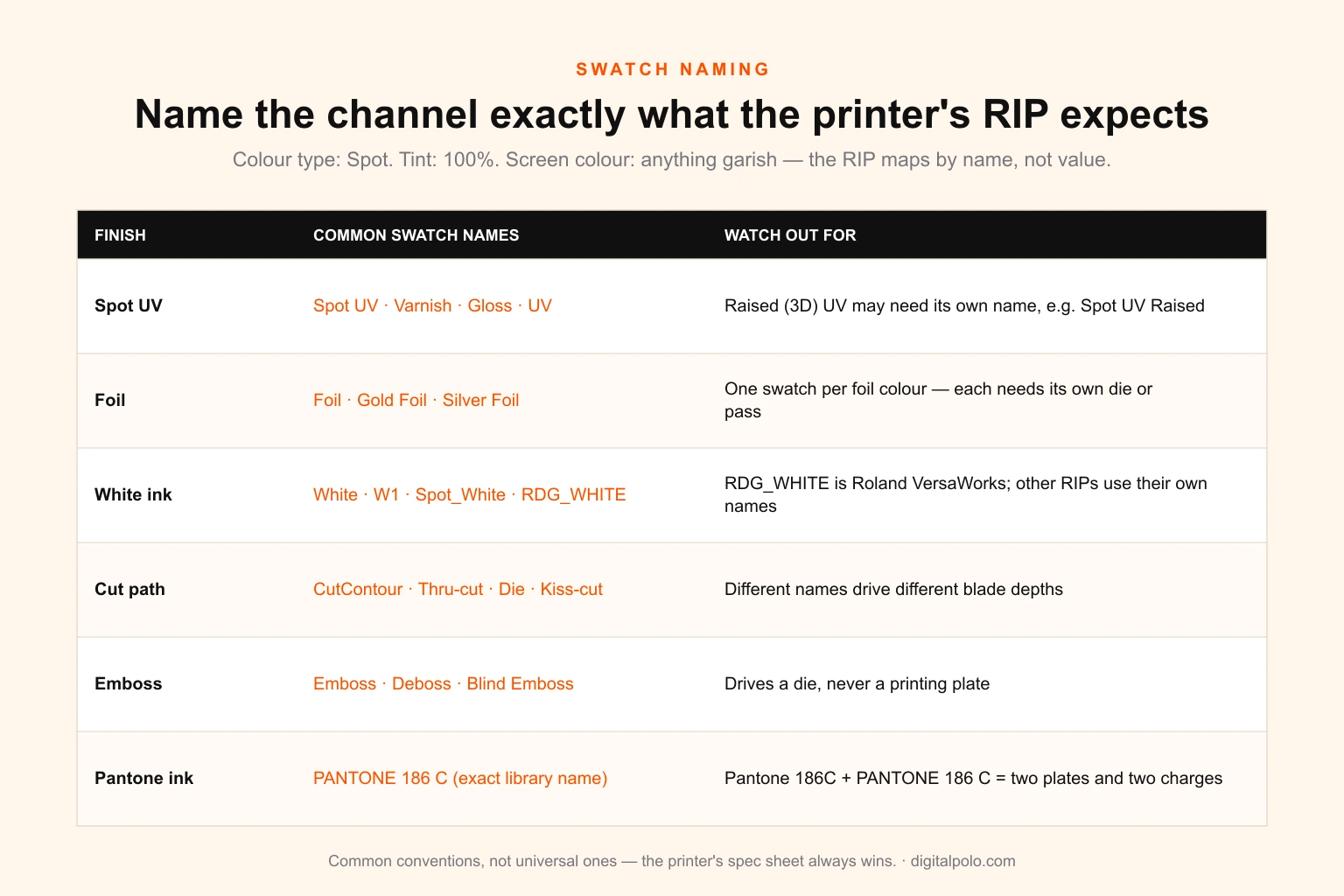
These are common conventions, not universal ones. The printer's spec sheet always wins — one character out and the plate does not separate.
| Finish | Common swatch names | Notes |
|---|---|---|
| Spot UV / varnish | Spot UV, Varnish, Gloss, UV |
Some printers want Spot UV Raised or a separate name for 3D varnish |
| Foil | Foil, Gold Foil, Silver Foil, Foil_Gold |
One swatch per foil colour, even if both are gold from different suppliers |
| White ink | White, W1, Spot_White, RDG_WHITE |
RDG_WHITE is the Roland VersaWorks convention; Mimaki and HP Indigo RIPs use their own |
| Cut path | CutContour, Thru-cut, Die, Kiss-cut |
Different names drive different blade depths — see kiss-cut vs die-cut stickers |
| Emboss | Emboss, Deboss, Blind Emboss |
Drives a die, never a plate |
| Pantone ink | PANTONE 186 C exactly as the library names it |
Duplicate names (PANTONE 186 C and Pantone 186C) create two plates |
How to create a finish swatch in Illustrator and InDesign
The steps are almost identical in both applications.
- Open the Swatches panel and choose New Swatch.
- Type the printer's exact name into Swatch Name.
- Set Colour Type to Spot Colour. This is the step that makes it a separate channel. Process Colour will separate into CMYK.
- Set the colour values to something highly visible and unlike anything in the artwork — 100 per cent magenta or a bright cyan is the common choice. The values only affect how the swatch looks on screen; the printer's RIP ignores them and maps the channel by name. Making it garish means nobody mistakes it for artwork.
- Apply the swatch at 100 per cent tint. Do not use 99 or 50 per cent.
In Affinity Designer or Publisher, create a new swatch in the document palette, and in the colour type options make it a Spot colour; the same naming and 100 per cent rules apply. In CorelDRAW, use a custom spot colour in a custom palette. Whatever the tool, the PDF it writes must contain a Separation colour space with the right name — which is what the preflight at the end checks.
For brand-critical Pantone spot inks, the same discipline applies to naming: use the swatch from the official library rather than typing a name by hand, and if a client supplies CMYK values for a Pantone colour, cross-check them with our Pantone to CMYK converter before deciding whether the job genuinely needs a spot plate. A spot ink adds a press unit and cost; sometimes a well-matched process build is the right call, as covered in CMYK vs RGB explained.
Overprint vs knockout: the default that ruins finish files
This is the rule that causes the most expensive mistakes, so it is worth understanding properly.
In every design application, when one object sits on top of another, the top object knocks out the one below. On the separations, the area under the top object is removed from every plate the top object does not use. That is correct for artwork — a yellow logo on a blue background should not print yellow over blue, or it would turn green.
It is wrong for finishes. A spot UV shape placed over a photograph knocks the photograph out of the CMYK plates. The press then prints a white hole in the photo, and the varnish goes down on bare paper. On screen it looks fine, because the swatch you made is magenta and you assumed the magenta "was" the varnish.
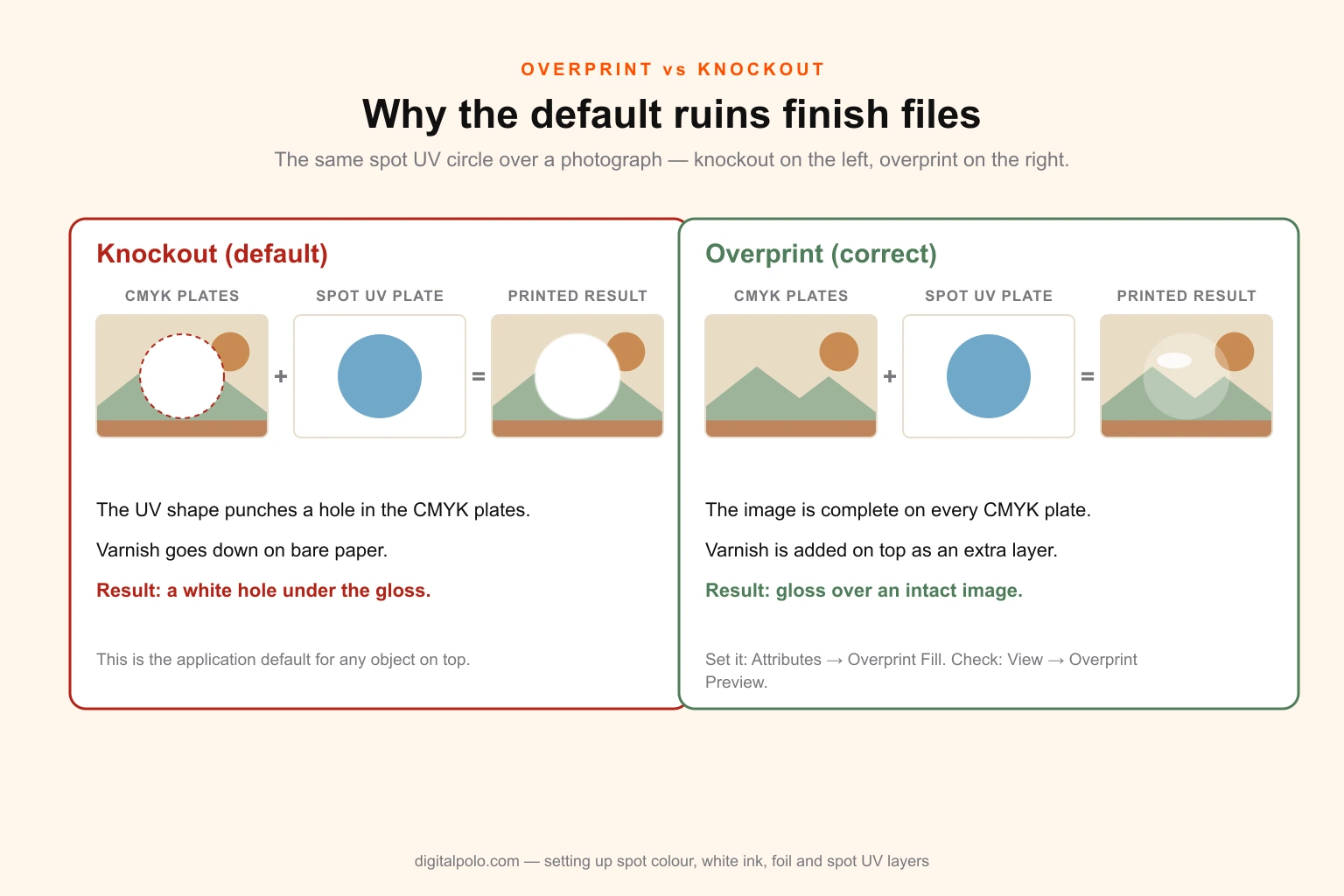
The single most common finish fault. Overprint leaves the artwork complete and adds the finish on top; knockout cuts the finish's shape out of every plate beneath it.
The fix: select every object on each finish layer and set it to overprint.
- Illustrator: Window → Attributes → tick Overprint Fill (and Overprint Stroke if the object has a stroke).
- InDesign: Window → Output → Attributes → tick Overprint Fill / Overprint Stroke.
- Check it: View → Overprint Preview in either application. With it on, the artwork beneath a finish should be visible through it. With it off, the finish appears opaque — which is why people miss the problem.
When knockout is correct
Not every finish overprints. The deciding question is: should the ink beneath the finish exist on the finished piece?
| Finish | Default | Why |
|---|---|---|
| Spot UV | Overprint | The varnish is clear; the image underneath must print |
| Hot foil | Ask the printer — usually overprint, sometimes knockout | Foil is opaque, so ink beneath is invisible either way; some printers prefer bare paper for adhesion, others want ink under it as a safety margin against misregistration |
| Cold foil | Overprint with CMYK on top of the foil | Cold foil is applied inline and then printed over; CMYK over silver foil is how coloured metallics are made |
| White underbase | Overprint | The colour prints over the white; both must exist |
| Spot white (white as a design colour) | Knockout of other inks beneath it | It is a colour in its own right on a clear or coloured substrate |
| Pantone spot ink | Knockout (normal artwork rules), with trapping | It is ink, not a finish |
| Dieline / cut path | Overprint | It must never knock a hairline out of the artwork |
The hot foil row is the one to settle in writing. If the printer wants ink knocked out beneath foil, build the knockout deliberately: duplicate the foil shape onto the artwork layer, fill it with paper (white), and then spread the foil shape about 0.1–0.15 mm so it slightly overlaps the knocked-out area. That overlap — called a trap — stops a hairline of bare paper appearing at the edge if the foil lands a fraction off. Without it you get the cream line around the gold name from the opening of this guide.
Spot UV: flat, raised and mask files
Spot UV is a clear varnish cured instantly under ultraviolet light, applied only to selected areas. It is most dramatic over a matt or soft-touch laminate, where the contrast between flat and gloss is highest — on uncoated paper it soaks in and the effect is weak.
There are three common ways to apply it, and the file differs slightly for each.
- Flat spot UV (screen or offset coater). The traditional method. A screen or plate lays down a thin gloss layer. Registration is the weakest of any process here — often within ±0.5 to 1 mm — so avoid tight-registered fine detail, and design so that a slight shift does not look like a mistake.
- Digital spot UV (inkjet embellishment). Presses such as the MGI JETvarnish and Scodix ranges jet varnish digitally, with no screen and much better registration. Ideal for short runs and variable data.
- Raised or 3D spot UV. The same digital presses build the varnish up into a tactile layer. Raised UV needs more generous minimums than flat, because the varnish spreads slightly as it builds height.
Setting up spot UV as a layer
- Create the
Spot UV(or printer-named) spot swatch, as above. - On the Spot UV layer, paste in place every element that should be glossed — the logo, a headline, a pattern.
- Fill everything with the swatch at 100 per cent. No gradients, no transparency effects, no drop shadows.
- Set every object to overprint fill.
- Keep spot UV off folds, scores and glue areas, and generally at least 2–3 mm inside trim on cards, because cured UV cracks when the stock is bent and stops adhesive bonding.
- Unless the printer asks otherwise, do not extend spot UV into bleed — if a varnish panel needs to go edge-to-edge, ask, as some coaters cannot run to the trim.
Setting up spot UV as a mask file
Some printers — particularly online trade printers — want a separate file instead. A mask file is the same artboard size as the artwork, with bleed, where 100 per cent K (black) means varnish and white means no varnish. Export it from the Spot UV layer: hide the artwork, recolour the varnish objects to 100 K, export, and check the two files overlay perfectly at the same position. Name them clearly — jobname_front_CMYK.pdf and jobname_front_SPOTUV.pdf — so they can never be swapped.
If you need to support several printers, keep the master as a layered file with a named spot swatch. Generating a mask from that takes a minute; going the other way invites misalignment.
Raised UV and tints
Raised UV is the one finish where a tint might be correct. Some digital embellishment workflows use tint percentages on the varnish channel to set different heights — 100 per cent for the tallest build, lower values for lower relief. Only do this when the printer's spec says so, and use the exact values they give. On every other process, a tint on a varnish channel either drops out or prints as a visible dot screen.
Foil: hot, cold and digital
Foil transfers a metallic or pigmented film from a carrier onto the stock. How it is transferred changes what the file can do.
- Hot foil stamping uses a heated metal die (magnesium, copper or brass) pressed through the foil onto the stock. The die is made from your foil artwork, so the file is a tooling file. Edges are crisp, but the process does not hold very fine detail, and large flat areas can fill unevenly or blister.
- Cold foil is applied inline on some offset and label presses: an adhesive is printed in the foil shape, foil is laminated to it, and the excess is stripped. Because it is printed, CMYK can then be overprinted on top of the foil — a silver cold foil with cyan over it becomes metallic blue. That is a design opportunity hot foil does not offer.
- Digital foil (sleeking or toner foiling) bonds foil to toner or a digitally printed adhesive. No die is needed, so it suits short runs and personalisation.
Setting up a foil layer
- Create one spot swatch per foil colour —
Gold Foil,Silver Foil— named to the printer's spec. Two golds from different suppliers are two swatches. - Draw the foil shapes as solid vector at 100 per cent. No tints, no gradients, no raster textures. A gradient on a foil layer is either rounded to solid or rejected.
- Outline all type.
- Set overprint (or build a trapped knockout if the printer asks — see the table above).
- Remove any stray points, hidden objects and open paths. The die-maker etches whatever is in the file.
- Keep foil off folds where possible; foil cracks on a tight crease.
Foil and fine detail
The most common foil rejection is detail that is too fine. Foil bridges small gaps — the inside of a lowercase e or a fills in — and lifts off thin lines, because there is not enough surface for the film to grip. Which is why foil minimums are generous. Use the table in the next section as a starting point and check it against the specific press.
One more foil trap: foil does not bond reliably to cured UV varnish or to every laminate. If the job has soft-touch lamination plus foil, specify a foil-receptive laminate. If it has foil and spot UV, keep them apart or confirm the printer can run UV over foil (some can, and it gives a glossy-metallic edge).
Minimum line weights, gaps and text sizes
Every special process has a resolution limit, and it is far coarser than offset CMYK. The numbers below are safe starting points for the processes most printers run. They are deliberately conservative. Confirm with the printer before designing anything near the limit — a specific press may hold finer, and a few will need coarser.
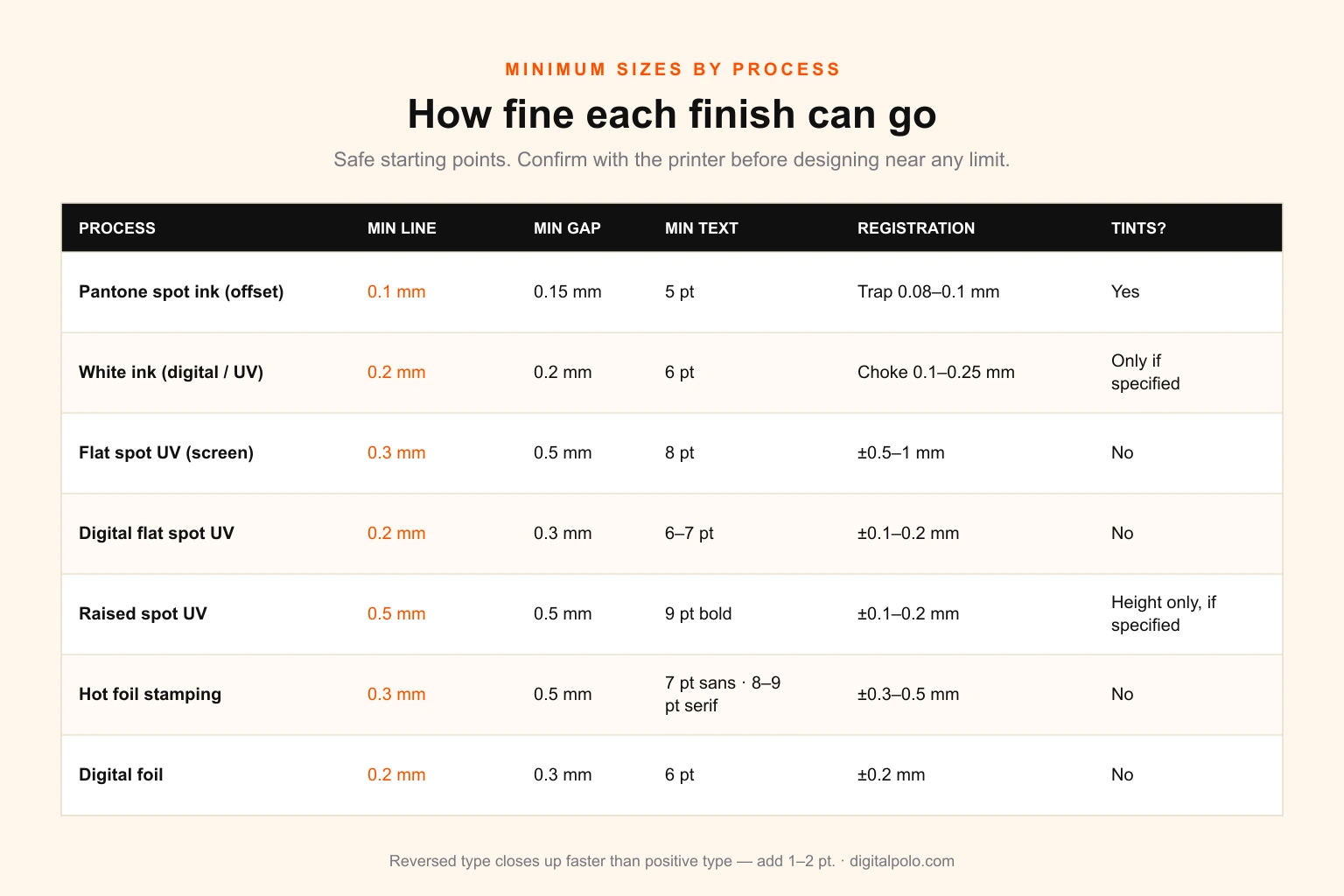
Safe starting points, not universal limits. Gaps and counters matter as much as line weight — foil and raised varnish both fill small spaces.
| Process | Min positive line | Min gap / counter | Min text | Registration to print | Tints? |
|---|---|---|---|---|---|
| Pantone spot ink (offset) | 0.1 mm (≈0.25 pt) | 0.15 mm | 5 pt | Trap 0.08–0.1 mm | Yes |
| White ink (digital / UV) | 0.2 mm (≈0.5 pt) | 0.2 mm | 6 pt | Choke 0.1–0.25 mm | Only if specified |
| Flat spot UV (screen) | 0.3 mm (≈0.85 pt) | 0.5 mm | 8 pt | ±0.5–1 mm | No |
| Digital flat spot UV | 0.2 mm | 0.3 mm | 6–7 pt | ±0.1–0.2 mm | No |
| Raised spot UV | 0.5 mm (≈1.4 pt) | 0.5 mm | 9 pt bold | ±0.1–0.2 mm | Only for height, if specified |
| Hot foil stamping | 0.3 mm (≈0.85 pt) | 0.5 mm | 7 pt sans / 8–9 pt serif | ±0.3–0.5 mm | No |
| Digital foil | 0.2 mm | 0.3 mm | 6 pt | ±0.2 mm | No |
A few practical consequences:
- Avoid fine serif type in foil and raised UV. A light serif face at 8 pt has hairlines well under 0.1 mm. Use a sans or slab, or go bigger and bolder.
- Use registration-tolerant design for screen UV. Rather than glossing exactly the letters of a headline, gloss a panel or shape that includes them, or deliberately offset the varnish as a style. If the effect only works when perfectly registered, it needs a digital process.
- Reversed type is harder than positive type. White text knocked out of a foil panel closes up faster than foil text on paper. Add 1–2 pt to the minimum.
The same thinking about real output resolution — rather than what looks sharp on screen — applies to images; our large-format print resolution guide and print resolution calculator cover that side.
White ink: underbase, spot white and print order
White ink is the finish people most often get wrong, because the instinct that "white is just a colour" is false in print. In a CMYK file, white means no ink. A white shape tells the press to leave the substrate bare. On white paper that looks white. On clear film, kraft board, metallic stock, coloured paper or a dark garment, it looks like nothing at all — the "my white printed transparent" problem that fills design forums.
To print actual white, the white has to be a named spot channel that the RIP maps to the white ink unit or screen. There are two jobs it can do.
- Spot white — white used as a visible colour in the design: white text on kraft, a white logo on a clear window decal. Build it as shapes filled with the
Whiteswatch. - White underbase — white printed beneath colour so the colour stays opaque and accurate. CMYK inks are translucent; printed straight onto clear film or a dark substrate, they turn dull and see-through. An underbase gives them a white surface to sit on.
Building and choking an underbase
- Duplicate every element that needs to be opaque onto the White layer.
- Unite the shapes into a single silhouette (Pathfinder → Unite in Illustrator) and fill with the
Whiteswatch at 100 per cent. - Choke it. Offset the path inward (Object → Path → Offset Path with a negative value) so the white sits slightly inside the colour above. A choke of 0.1–0.25 mm suits most digital, UV and label printing. Screen printing on garments typically needs more — often 0.25–0.5 mm — because fabric moves between screens. Without a choke, any misregistration leaves a white halo around the artwork.
- Set the underbase to overprint.
- For photographic artwork, some printers want the underbase generated from the image itself — a greyscale version where lighter areas get less white, so highlights keep their translucency. That is a RIP-side or printer-specified technique; do not attempt it unless asked.
Screen printers handle underbases slightly differently again — a separate underbase screen, often a highlight white printed last — which is covered in graphic design for screen print shops.
White first or white last
Whether white goes beneath or above the colour depends on which way the finished piece is viewed.
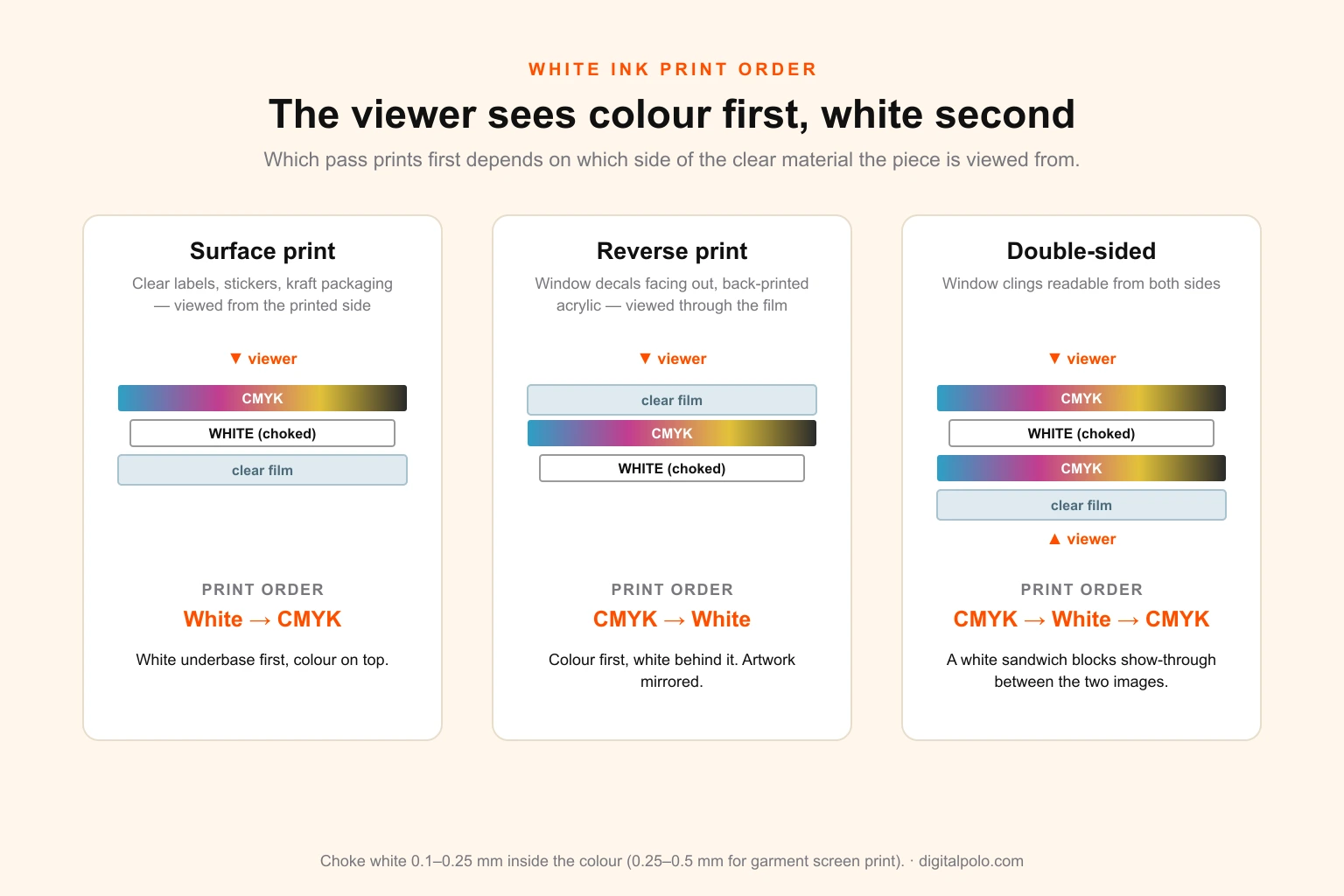
The viewer must always see colour first and white second. Which pass prints first depends on which side of the clear material they look from.
- Surface print (viewed from the printed side — clear labels, stickers, kraft packaging): white first, then colour.
- Reverse or second-surface print (viewed through clear material — window decals facing out, acrylic signs printed on the back): colour first, then white. The artwork is also mirrored, which the printer usually handles in the RIP. Confirm who does the mirroring so it is not done twice.
- Double-sided clear (a window cling readable from both sides): colour, white, colour — a "sandwich" where the white blocks show-through between the two images.
Tell the printer which one you mean, in words, in the brief. "White underbase, surface print, white first" leaves nothing to interpret. This is the same level of explicit instruction recommended for sticker and label jobs in our guides to sticker businesses and label design.
When finishes overlap: the production order decides the file
Premium pieces often stack finishes: a soft-touch business card with gold foil and raised spot UV; a carton with a Pantone ink, cold foil, spot UV and an emboss. Whether two finishes can touch or overlap depends on the order the printer applies them — and that order is fixed by the equipment, not by the designer.
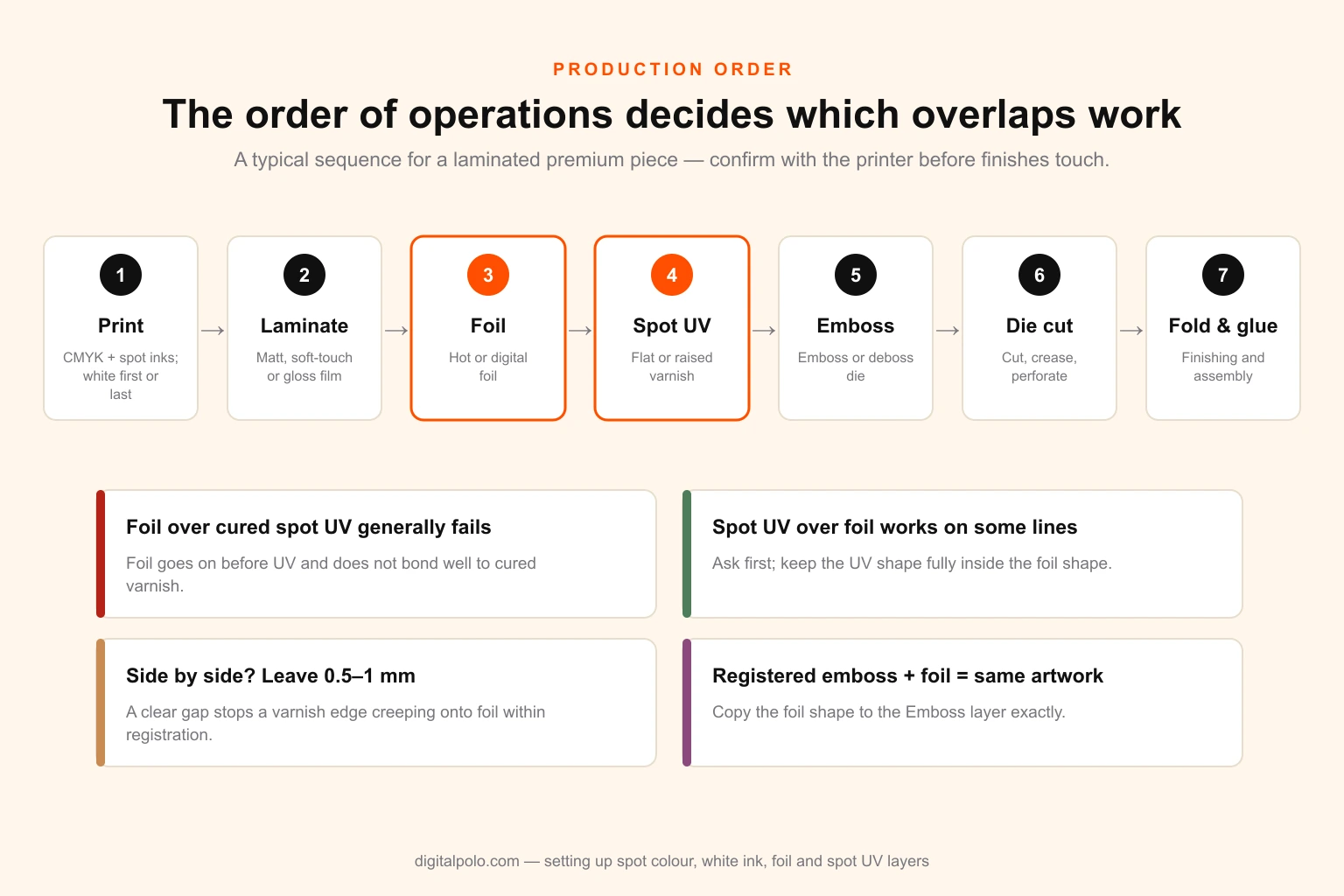
A typical sequence. Confirm it with the printer before designing anything where two finishes meet, because the order decides which overlaps are physically possible.
A typical sequence for a laminated piece:
- Print — CMYK and any spot inks (with white first or last as above).
- Laminate — matt, soft-touch or gloss film.
- Foil — hot or digital.
- Spot UV — flat or raised.
- Emboss / deboss — a separate die.
- Die cut, crease, fold, glue.
What that means for the file:
- Foil over spot UV generally fails. Foil is applied before the UV and does not bond well to cured varnish. Do not design foil sitting on a glossed area.
- Spot UV over foil is possible on some lines and gives a high-gloss metallic. If you want it, ask first, and build the UV shape to sit fully inside the foil shape.
- Leave a gap where foil and UV sit side by side. About 0.5–1 mm of clear space prevents a varnish edge creeping onto the foil within normal registration.
- Registered emboss + foil (a foiled logo that is also raised) uses the same artwork for both dies. Copy the foil shape to the Emboss layer exactly; the die-maker will add any bevel.
- Keep every finish clear of glue flaps and creases on packaging. Coatings stop adhesive bonding and crack on folds.
- White under foil on clear stock. On a clear substrate, foil on its own can look thin; a choked white underbase beneath it makes it read as solid metallic.
The more finishes a job has, the more expensive a file error becomes, so the more it pays to brief everything up front. The packaging redesign cost guide shows how quickly tooling charges stack once foil and emboss dies are involved.
Exporting: keep the spots alive
All of the work above can be undone in the export dialogue. A correct export keeps every finish as its own named separation.
- Use PDF/X-4 unless the printer specifies otherwise. It preserves spot colours, layers and live transparency. PDF/X-1a also preserves spots but flattens transparency, which can split finish shapes into fragments — ask before using it.
- Do not convert spot colours to process. In InDesign, open the Ink Manager (from the Swatches panel menu or the Output panel of the export dialogue) and make sure All Spots to Process is unticked. In Illustrator, check the Output panel does not convert colours to a destination profile in a way that alters spots.
- Use Ink Manager aliases to merge duplicates. If a placed file brought in
Pantone 186Calongside yourPANTONE 186 C, alias one to the other so the PDF contains a single plate. - Include bleed and marks as the printer specifies — usually 3 mm (0.125 in) bleed — and make sure the finish layers use the same bleed and trim box as the artwork.
- One file or separate files, as the printer asks. If separate, name and version them so they stay paired.
The separation preflight: check what the press will see
A screen proof cannot show you a separation. A five-minute check in Acrobat Pro can. Do it on every finish job before the file leaves the studio, and after any late change.
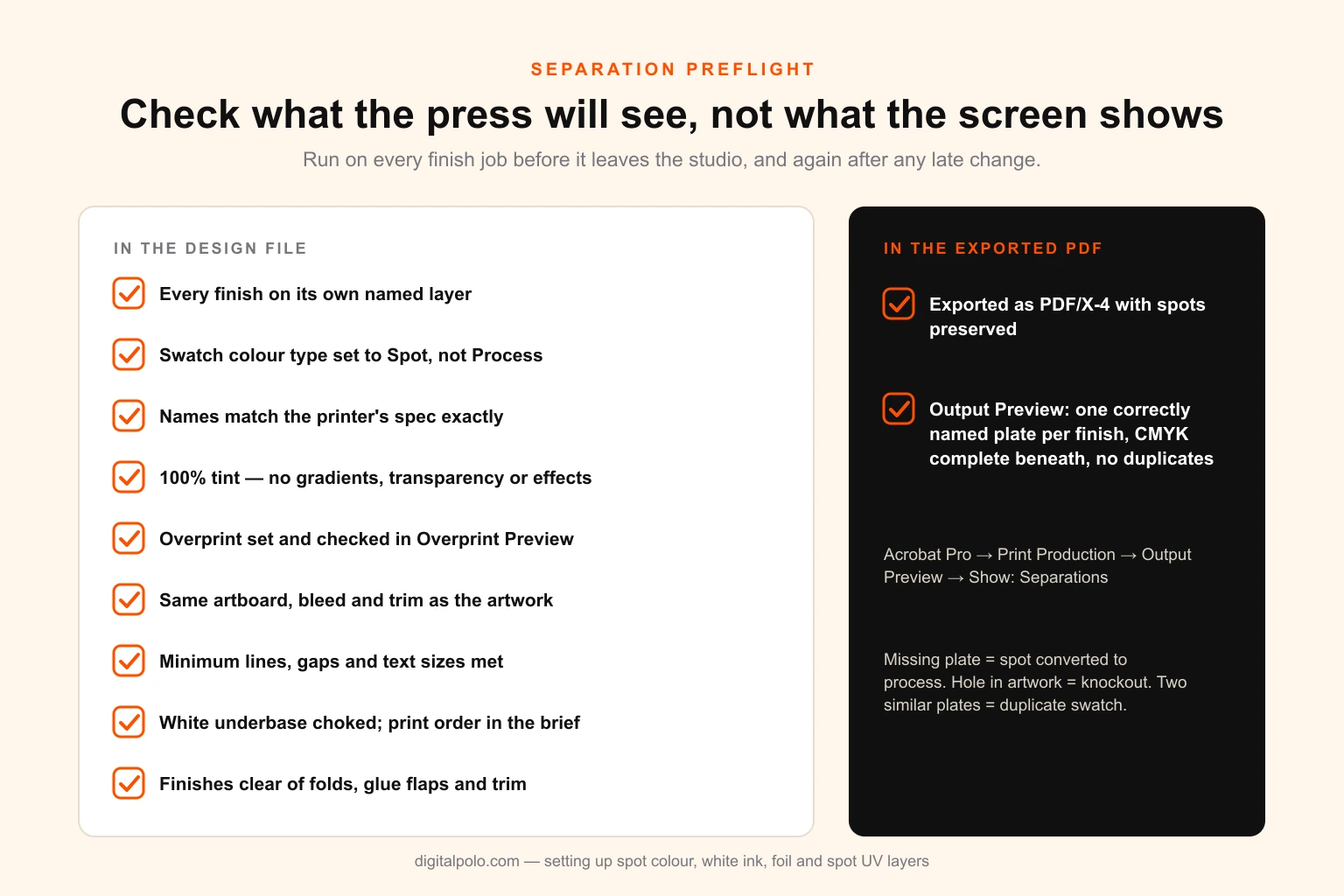
Between them, these checks catch almost every reason a finish file is bounced. The last one — reading the separations — is the one that catches the rest.
In the design application:
- Each finish sits on its own named layer, and nothing else is on that layer
- Each finish swatch is Spot, not Process, and named exactly as the printer specified
- Every finish object is 100 per cent tint, with no gradients, transparency, shadows or effects (unless specified, as for raised UV height)
- Every finish object is set to overprint (or to a deliberate, trapped knockout for hot foil if the printer asked), checked with Overprint Preview on
- Finish layers align exactly with the artwork, with the same artboard, bleed and trim
- Lines, gaps and text meet the minimums for the process
- White underbase is choked; print order (surface, reverse, sandwich) is written in the brief
- Finishes stay clear of folds, creases, glue flaps and the trim margin
In the exported PDF (Acrobat Pro → Print Production → Output Preview → Show: Separations):
- Each finish appears as its own plate, with the right name, alongside Cyan, Magenta, Yellow and Black
- Toggling each finish plate off shows the CMYK artwork complete underneath — no holes
- There are no duplicate plates (
Spot UVandSpotUV; two versions of the same Pantone) and no unexpected plates from placed images - Running a PDF/X-4 preflight profile reports no errors
If a plate is missing, a spot was converted to process. If a hole appears in the artwork, something knocked out. If two near-identical plates appear, a duplicate swatch needs aliasing. Each fault tells you exactly where to look.
Briefing the printer and the designer
Most finish-file problems start before anyone opens the design application. Two short documents prevent most of them.
Ask the printer, before design starts:
- Exact swatch or channel names for every finish
- One PDF with spot channels, or separate mask files?
- Overprint or knockout under hot foil?
- Minimum line, gap and text sizes on the press that will run it
- Production order, and whether UV over foil is possible
- White ink: which RIP convention, and who mirrors for reverse print?
- Bleed, trim margin, and how close to a fold any finish may run
- Preferred PDF standard (PDF/X-4 or X-1a)
Give the designer:
- The printer's answers, verbatim
- The substrate (stock, laminate, colour, clear or opaque)
- Which elements get which finish, marked up on a sketch or PDF
- Any brand Pantone references from the brand guidelines
A good general structure for that is in how to write a graphic design brief; for print finishes, the printer questions above are the part that makes the difference.
Mid-guide checkpoint. If your team is rebuilding finish files every time a job moves to a new printer, the problem is capacity rather than skill. Digital Polo's print-ready design service builds and separates special finish files to each printer's spec, and print shops use our white-label design for printers to take artwork prep off their own prepress desk. Plans start at $399 a month — see pricing.
Common mistakes, and what they look like on the finished piece
| Mistake in the file | What comes back from the press |
|---|---|
| Finish drawn in a process colour | Finish prints as pink, cyan or black ink |
| Finish swatch named wrongly | Finish missing entirely, or printed as an extra ink |
| Finish left on knockout | White holes in the image beneath the gloss or foil |
| Spot converted to process on export | No finish at all; sometimes a faint tint in the CMYK |
| Gradient or tint on a foil or UV layer | Dotty, broken foil or varnish, or the area dropped |
| Detail below the process minimum | Foil filling counters; fine lines missing; raised UV blobbed |
| No trap on knocked-out foil | Hairline of bare stock round the foil |
| White underbase not choked | White halo around the artwork |
| White in CMYK instead of a spot white | "Transparent" shapes on clear or coloured stock |
| Spot UV across a fold | Cracked varnish along the crease |
| Foil over cured spot UV | Foil flaking or not transferring |
| Duplicate spot swatches | An extra plate, an extra press unit, an extra charge |
Every row is a file problem. Every one is caught by the preflight above.
Tools for building and checking finish files
- Adobe Illustrator — the default for foil, spot UV and cut paths on single-page pieces, packaging and stickers. Attributes panel for overprint; Separations Preview (Window → Separations Preview) shows plates live while you work.
- Adobe InDesign — multi-page work and layouts with placed artwork. Ink Manager for aliasing and spot control; Separations Preview in the Output panel.
- Adobe Acrobat Pro — Output Preview, preflight profiles and fixups. The final authority before a file is sent.
- Affinity Designer and Publisher — capable of spot swatches, overprint and PDF/X-4 export at a much lower cost; check the exported PDF's separations in Acrobat, as always.
- Esko ArtPro+ / Deskpack, Enfocus PitStop — professional prepress tools used by packaging converters and larger printers for trapping, separations and automated preflight.
- The printer's own spec sheet and templates — the most valuable tool on this list. If they offer a template with swatches already named, use it.
How to measure whether your finish files are working
If you produce finish files regularly — as a studio, an in-house team or a print reseller — a few numbers show whether the process is under control.
- First-time-right rate: the percentage of finish jobs accepted by prepress with no corrections. Target 95 per cent or better. Below 90 per cent, the brief or the preflight is being skipped.
- Prepress correction charges: what printers bill you for fixing files. It should trend to zero.
- Finish-related reprints: jobs reprinted because of a finish fault, by cause. One per year is a warning; one per quarter is a process gap.
- Time from approval to plates: finish jobs that bounce add a day or more. Tracking it shows the real cost of file errors to your turnaround, which matters if you sell on speed (see our design turnaround benchmarks).
For printers and resellers, these numbers also feed pricing. Finish-file preparation is skilled work that is easy to under-quote; the print shop design pricing guide covers how to charge for it.
Next steps
- Make a standard layer template with the seven layers above and your most-used printers' finish swatches already named. Start every finish job from it.
- Write the eight printer questions into your job sheet, and do not open the design file until they are answered.
- Add the separation check to sign-off. No finish file leaves without someone reading the plates in Output Preview.
- Keep a printer spec library — one page per printer with their names, minimums and file format — so the knowledge does not live in one person's head.
- Decide who builds the files. If finish prep is eating your designers' or prepress team's week, it is the kind of repeatable, specification-driven work that outsources well — provided the partner proves they can separate correctly. Our guide to vetting a white-label design partner includes a test brief you can use.
Where Digital Polo fits
Digital Polo is a flat-fee design service that produces print-ready files every day for printers, packaging brands, sticker and label makers, screen-print shops and the agencies that resell their work. Special finish separation is part of standard print-ready design and packaging design, not an add-on: we build to your printer's swatch names, minimums and file format, and we send the separations check with the file.
- Partner — $399 a month: unlimited print-ready design tasks and revisions, 48-hour turnaround, all source files.
- Soulmate — $899 a month: 24-hour priority delivery and a dedicated team, for steady print volume.
Printers, sticker manufacturers, screen-print shops and promotional products businesses can run it fully white-label, with source files and an NDA. For more on how the model works, see unlimited graphic design and our deeper look at unlimited graphic design for print shops.
Want finish files that pass prepress first time? Book a 15-minute call and send us a printer spec sheet — we will show you exactly how we would build the layers.
Frequently asked questions
How do I set up a file for spot UV?
Put the spot UV on its own layer, at the same size and bleed as the artwork. Create a spot swatch named exactly as your printer asks — often Spot UV or Varnish — fill the gloss areas with it at 100 per cent, and set them to overprint. Export PDF/X-4 and check in Acrobat's Output Preview that the varnish is its own plate. If the printer wants a mask file instead, export the same layer as 100 per cent black on white, perfectly aligned.
Should spot UV and foil layers be set to overprint?
Usually yes, because the default knockout punches a hole in the artwork beneath the finish. The exception is hot foil where the printer prefers bare stock under the foil — then build the knockout deliberately and spread the foil 0.1–0.15 mm as a trap.
Why did my white shape print transparent?
White in a CMYK file means no ink. To print white ink, the white must be a named spot channel — White, W1, RDG_WHITE or your printer's name — on its own layer, set to overprint.
What is a white underbase and how much should it be choked?
It is white ink printed beneath colour on clear or non-white substrates so the colour stays opaque. Choke it 0.1–0.25 mm inside the artwork for digital, UV and label work, and 0.25–0.5 mm for screen printing on garments.
What is the minimum line thickness for foil stamping?
For hot foil, about 0.3 mm (0.85 pt) for lines and 0.5 mm for gaps and counters, with text at 7 pt or more in a sans serif and 8–9 pt in a serif. Digital foil can hold finer detail; confirm with the printer.
Can spot UV or foil have gradients or tints?
Almost never — they are on-or-off processes, and tints drop out or print as a dot screen. The exception is digital raised UV, where some presses use specified tint values to set varnish height.
Should I send spot UV as a separate file or a layer?
Whichever the printer specifies. Keep the master as a layered file with a named spot swatch, and you can export either a single PDF with a spot channel or a separate black-on-white mask file in minutes.
Does spot UV need to be on laminated stock?
It works on most coated stocks but is most striking on matt or soft-touch laminate. On uncoated stock it soaks in. If foil is involved too, specify a foil-receptive laminate.
How do I check special finish separations before sending a file?
In Acrobat Pro, go to Print Production → Output Preview → Separations. Each finish should be its own correctly named plate, the CMYK beneath it should be complete, and there should be no duplicate plates.
What order are special finishes applied in?
Typically: print, laminate, foil, spot UV, emboss, then die cutting and finishing. White prints first for surface print and last for reverse print. Confirm the order with your printer before designing overlaps.