A surprising amount of design rework — logos that print fuzzy, ads that look pixelated on retina screens, vehicle wraps that ship the wrong file format — comes down to one missed distinction: vector versus raster.
This is the 2026 guide. The real difference between the two image types, when to use each, the file formats that belong to each family, and how to convert between them when you have to.
Quick answer: Vector images are built from mathematical paths and scale to any size without losing quality. Raster images are built from a grid of pixels and lose quality when scaled up. Use vector for logos, icons, illustrations and anything that needs to resize. Use raster for photographs and complex digital images. Common vector formats: AI, EPS, SVG, PDF. Common raster formats: JPG, PNG, WebP, GIF, TIFF.
What a Vector Image Actually Is
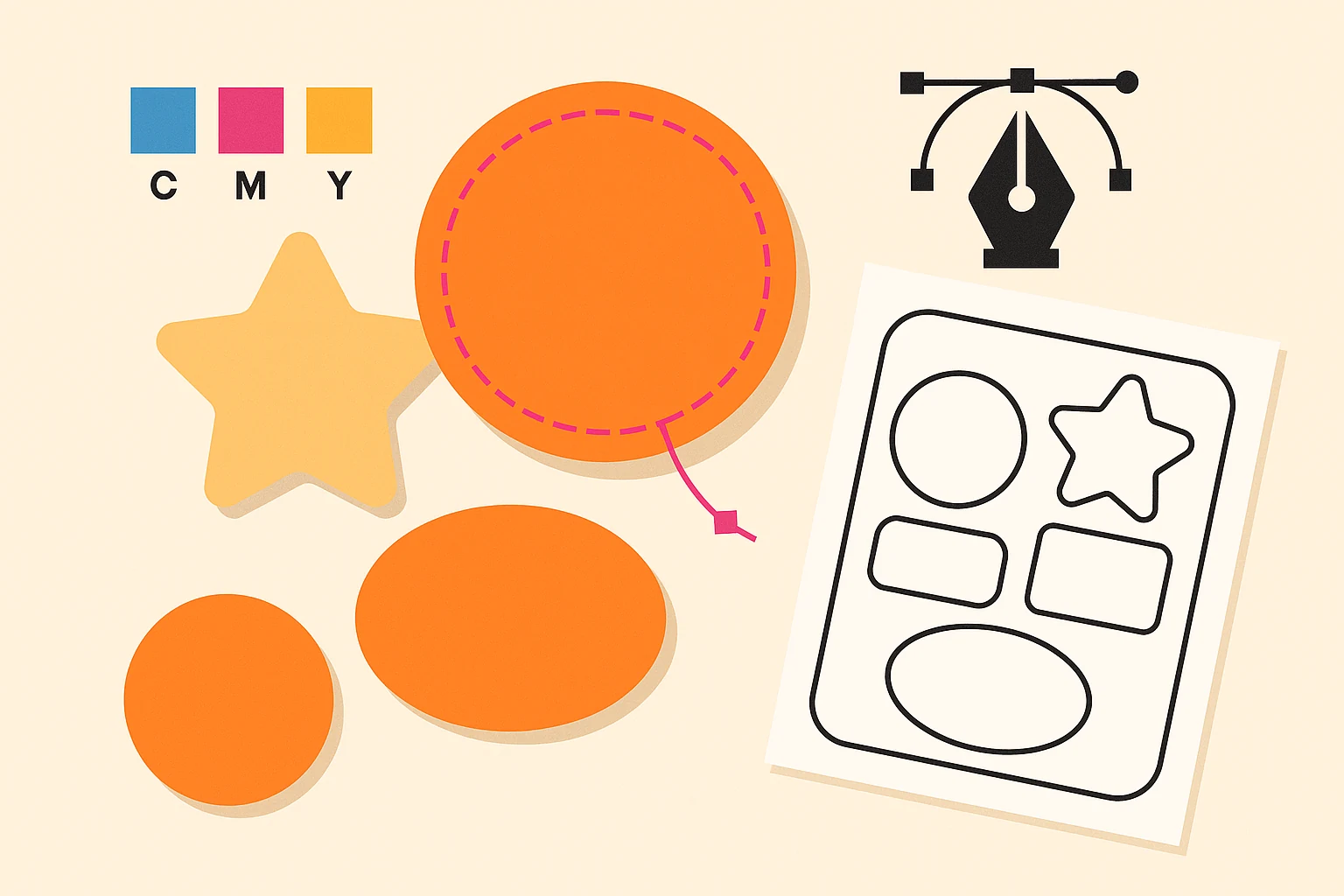
A vector image is a set of mathematical instructions for drawing shapes. Instead of storing every pixel, the file stores instructions like "draw a curve from point A to point B with control handles at C and D, filled with this colour". When you open the file, the software does the maths and draws the shape at whatever resolution your screen or printer needs.
This is why vector files can scale to any size without losing quality. The maths is the same whether you're rendering at 16 pixels or 16 feet. The software just does more sub-pixel calculations to fill the larger size.
Vector files are used for:
- Logos — designed once, used everywhere from favicon to billboard
- Icons — sharp at any UI size
- Illustrations — especially geometric, flat-style, or technical
- Typography — fonts themselves are vector data
- Signage, vehicle wraps, packaging — anything large-format
- Cut paths for plotters, vinyl cutters, and die-cut printers
Common vector formats: AI (Adobe Illustrator native), EPS (Encapsulated PostScript, widely accepted by printers), SVG (Scalable Vector Graphics, the web standard), PDF (when generated from vector source).
What a Raster Image Actually Is
A raster image (sometimes called a bitmap) is a grid of coloured pixels. Each pixel has a fixed colour value. The file stores those pixel values directly.
When you scale a raster image up, the software has to invent extra pixels to fill the new size. Depending on the upscaling method this produces either soft-blurry interpolation (bicubic) or blocky stair-step pixelation (nearest-neighbour). AI upscalers can do better but they're still hallucinating detail that wasn't in the original file.
When you scale a raster image down the quality is fine — the software discards pixels rather than inventing them.
Raster files are used for:
- Photographs — continuous-tone, near-infinite colour detail
- Photo-realistic illustrations and digital paintings
- Screenshots and screen recordings
- Web image exports of vector designs
- Complex texture and gradient-heavy artwork
Common raster formats: JPG (lossy, small file size, photo-friendly), PNG (lossless, transparency support, larger files), WebP (modern, smaller than JPG/PNG at the same quality), GIF (limited colours, animation support), TIFF (lossless, print-grade), HEIC (modern Apple format).
Side by Side: Vector vs Raster
| Vector | Raster | |
|---|---|---|
| Built from | Mathematical paths (points, curves, fills) | A grid of coloured pixels |
| Scales without quality loss | Yes, infinitely | No — gets blurry or pixelated when enlarged |
| Common formats | AI, EPS, SVG, PDF | JPG, PNG, WebP, GIF, TIFF, HEIC |
| Used for | Logos, icons, illustrations, signage, type | Photographs, digital paintings, screenshots |
| File size | Small for simple geometry, scales with complexity | Scales with pixel count (1920×1080 = 2M pixels) |
| Editable | Yes — every path and shape stays editable | Pixel edits only, no path-level editing |
| Print scaling | Same file from business card to billboard | Each print size needs a correctly-sized file |
| Web use | SVG for crisp scaling; AI/EPS need export | Direct — JPG/PNG/WebP load natively in browsers |
When to Use Vector
Always use vector for:
- Logos. A logo needs to appear at favicon size, business-card size, website-header size, sales-deck size, conference banner size, and (eventually) merch size. One vector file covers all of those without quality loss.
- Icons in UI design. Even at 24×24 pixels, vector icons stay crisp on every screen density and survive retina-scale displays.
- Illustrations that aren't photo-realistic. Geometric, flat-style, infographic and technical illustrations are usually better in vector — they remain editable and scalable.
- Anything destined for print at multiple sizes. Packaging that ships in three product sizes, brochures plus their billboard ad variant, vehicle wraps that template across a fleet of different chassis.
- Anything cut by a machine. Plotter cuts, laser cuts, CNC routing, vinyl-cutting — all expect a vector cut path.
When to Use Raster
Always use raster for:
- Photographs. Photos contain too much continuous-tone detail to be efficiently represented as paths.
- Final web exports of vector designs. Browsers handle SVG well now, but for the cases SVG isn't supported (older email clients, some social platforms), export the master vector to PNG or WebP at the right pixel dimensions.
- Digital paintings, complex illustrations, and any artwork where the texture is the medium.
- Photo-heavy print (magazines, photo books, art prints) — the vector wrapper is fine but the photo content lives as embedded raster inside the layout.
- Animations with raster frames (GIF, video) — vector animation is its own world (Lottie, SVG animation) with different constraints.
The Five Conversion Rules
- Vector to raster: easy. Raster to vector: hard. Software can render a vector to any pixel size by doing the maths. Software cannot reliably reverse-engineer pixels back into clean paths. Auto-trace tools (Illustrator's Image Trace) work for high-contrast simple images and fail on photographs.
- Vectorising a logo usually means redrawing it manually. If a customer arrives with a 200×200 JPG of their logo and needs it printed at 4 feet wide, the answer is not Image Trace — it's a designer redrawing the logo from scratch as clean vector paths. This is one of the most common jobs an unlimited graphic design service ships. Turnaround: 24–48 hours.
- Always keep the master file in vector if it started vector. Don't flatten an AI to a JPG and lose the layers. The master should always be the most editable version of the file.
- Match the export format to the destination. For web, export PNG (transparency) or WebP (smaller). For print, export PDF or EPS (vector preserved) or TIFF (lossless raster). For email or office documents, export PNG.
- For brand-critical work, always keep both files. Master AI for editing and rescaling. Exported PNGs / SVGs / PDFs for distribution. Versioning the master vector is what keeps your brand consistent over five years; versioning only the exports is what causes brand drift.
How Big Should a Raster Image Be?
The right pixel dimensions for a raster depend on where it will appear.
| Use case | Recommended pixel size |
|---|---|
| Standard web image (1x) | Match the displayed pixel dimensions |
| Retina web image (2x) | 2× the displayed pixel dimensions |
| Social media post (Instagram square) | 1080×1080 minimum, 1440×1440 better |
| Email header | 600×200 at minimum, 1200×400 for retina |
| Print at 300 DPI | Final print size in inches × 300 |
| Large-format print (poster) | 150–300 DPI depending on viewing distance |
| Billboard / building wrap | 50–100 DPI — viewing distance is huge |
| 4K video frame | 3840×2160 |
Those figures are a summary. The full derivation — why the number falls with viewing distance, how effective resolution differs from stated resolution, and how to build files at 1:10 scale when full size is physically impossible — is in resolution for large format.
The wrong-size rule: scaling up always loses quality, scaling down is fine. Always export at the largest size you'll need; smaller versions can be derived later without quality loss.
File Format Cheat Sheet
| Format | Type | Best for | Avoid for |
|---|---|---|---|
| AI | Vector | Master logo and illustration files | Sharing with non-Illustrator users |
| EPS | Vector | Print delivery to printers | Modern web (use SVG instead) |
| SVG | Vector | Web icons, logos, illustrations | Photographs |
| Either | Print-ready delivery, multi-page docs | Web display (slow to load) | |
| JPG | Raster | Photographs, photo-heavy social posts | Logos (no transparency, lossy edges) |
| PNG | Raster | Logos with transparency, web exports of vector | Large photos (file size) |
| WebP | Raster | Modern web (smaller than JPG/PNG) | Older email/print workflows |
| GIF | Raster | Short animations, very limited palette | Photographs, modern apps |
| TIFF | Raster | Print-grade photos and scans | Web (file size) |
| HEIC | Raster | iPhone photos (efficient) | Non-Apple workflows |
When You're Outsourcing Design Work, Spec the File Format
If you are outsourcing design — to a freelancer, an agency, or an unlimited graphic design subscription — always specify the output format in the brief.
- "Logo, AI master plus PNG and SVG exports" → designer delivers the right bundle
- "Print brochure, PDF/X-1a with bleed, vector throughout" → the printer accepts the file
- "Social ad, PNG at 1080×1080" → designer exports at the right pixel size
A good brief that names the format avoids the most common rework loop in design — "We sent you the file but the printer rejected it for being raster" — which is almost always a format-mismatch the original brief could have prevented.
DigitalPolo delivers vector AI / EPS / PDF source files with every job, plus the raster exports (PNG / JPG / WebP) you need for digital placement. See our plans → | Read our print-ready files guide →
Bottom Line
Vector for logos, icons, illustrations and anything that needs to scale. AI, EPS, SVG, PDF.
Raster for photographs and complex digital images. JPG, PNG, WebP, TIFF.
Convert vector to raster on export. Never start from raster if vector is possible.
Keep the master vector file forever. Every export is derived from it; never the other way around.
That is the whole vector versus raster story.