Sharing photos and getting likes — on the surface, Instagram can be as simple as that. But it does not explain how the platform has grown to more than 500 million daily active users, or why it has become one of the most powerful marketing channels for businesses of any size.
Instagram is vast. Not just in terms of audience, but as an app itself — with layers of features, tools, and settings that continue to grow. The internet is full of articles promising to spike your engagement quickly, but most skip over the fundamentals that actually make a lasting difference.
This guide walks through Instagram optimization step by step, based on what we tested ourselves — starting from zero. We follow the guidelines that genuinely increase engagement and reveal the marketing secrets that tend to get left out.
Here is how to make it work for your business.
Step 1. Sign Up
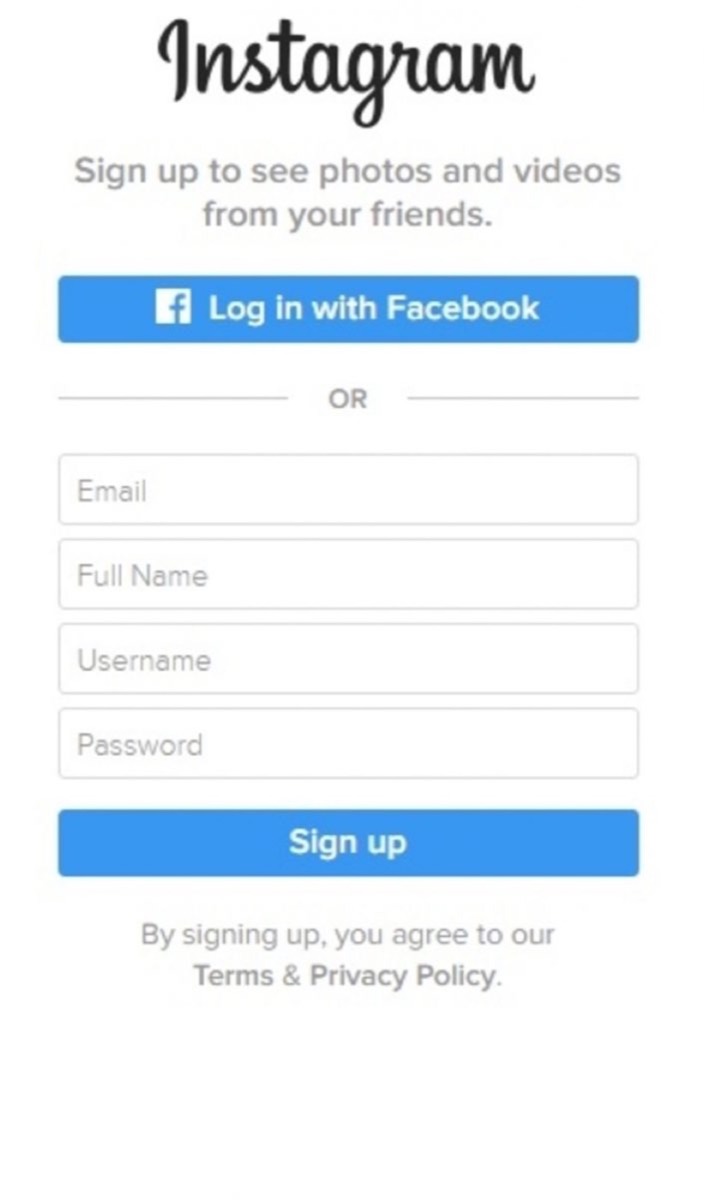
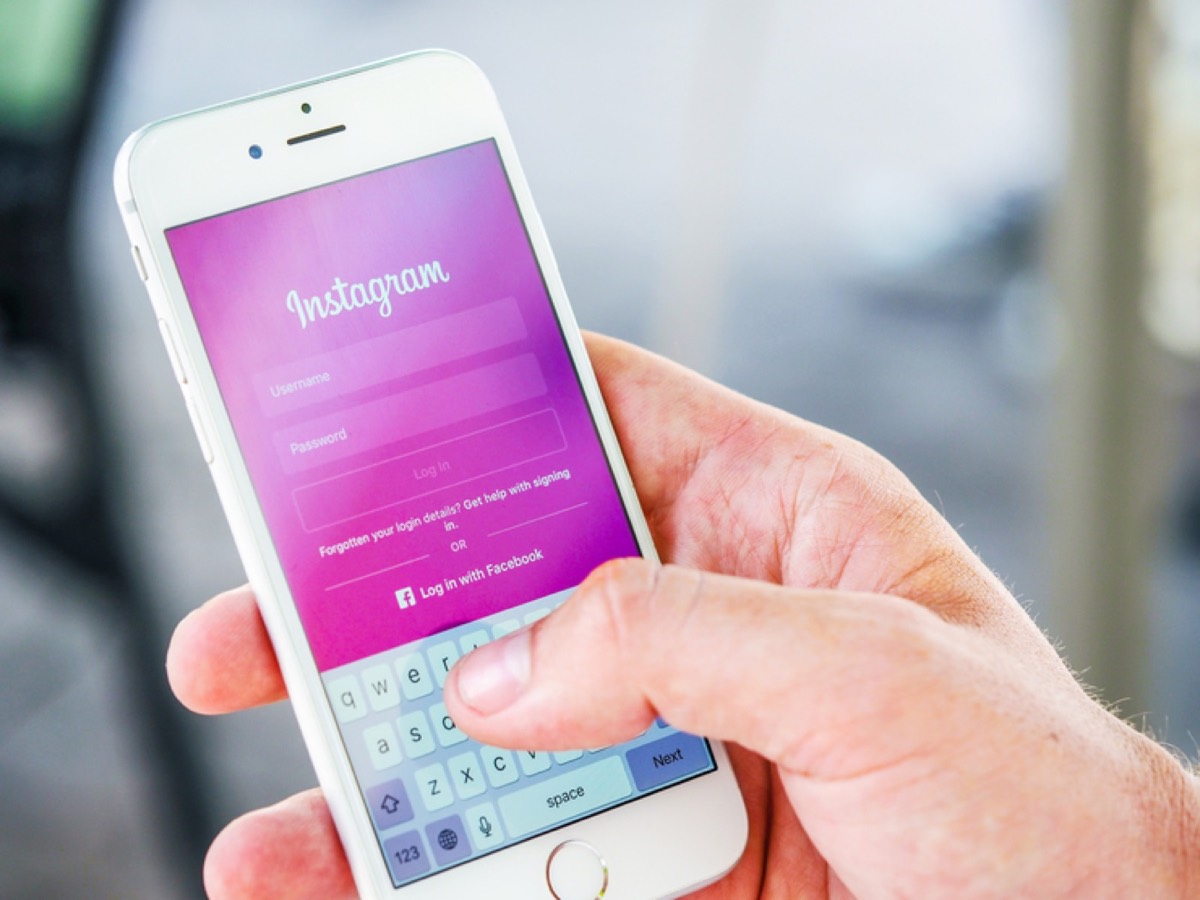
A sign-up page appears once you open the Instagram app or website. Creating an account requires:
- Either an email ID or a mobile phone number
- Your full name (or your company/business name)
- A desired username — if it is taken, you will see a red cross. If it is available, a green tick confirms you are good to go.
- A strong password
Alternatively, you can sign up using your Facebook account. The app automatically links and syncs your newly created Instagram account with your Facebook ID.
Step 2. Log In
Once you have signed up, a confirmation email is sent. Confirming that email gives you access to your brand new Instagram account.
Log in using your email address or phone number and you will be directed to your dashboard.
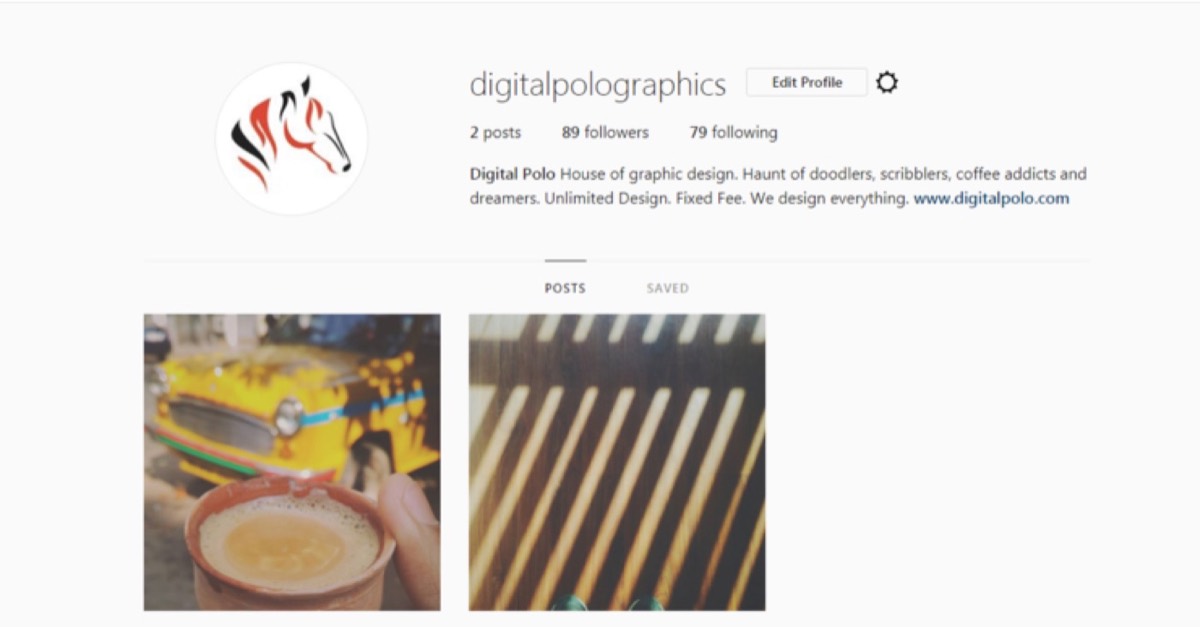
A general Instagram account and a business account look and function very differently — more on that shortly. For now, your freshly created account will show the simple general interface.
Logging in Through the App
- Install the app and open it
- Enter your username and password
- Tap Enter
Alternatively, tap "Log in with Facebook" if you signed up via Facebook.
Logging in Through a Website
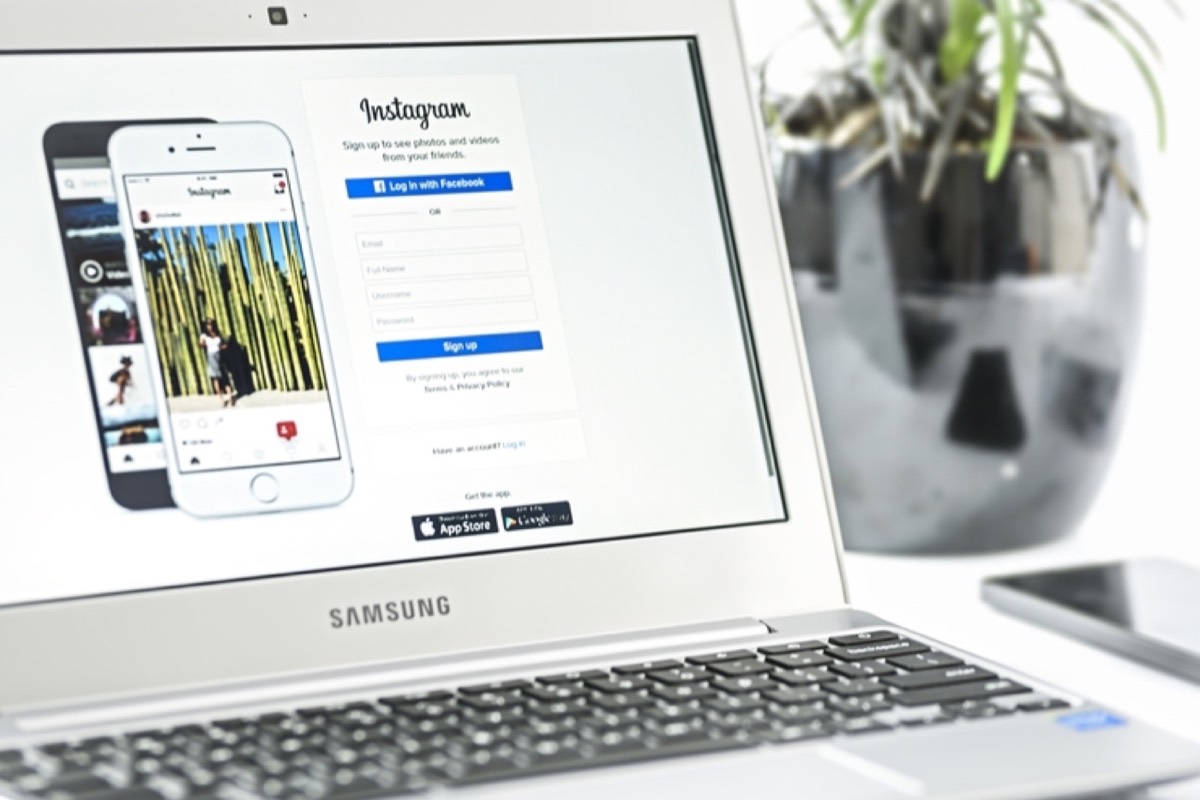
- Navigate to www.instagram.com in your browser (Chrome recommended)
- Enter your username and password
- Click Enter
The key difference between the two log-in methods is the resulting interface. The app version gives you access to Stories, the ability to edit your profile, reply to comments, and post new content. The web version currently restricts access to others' Stories, posting images, replying directly to comments, and creating Stories.
Step 3. Personalization
a) Upload Your Display Picture
Your display picture is the first thing potential followers will see. Their decision to follow or ignore you is partly built on that single photo.
We chose to use our business logo because it is minimal, consistent with our brand guidelines, and communicates our company identity visually. The display picture frame on Instagram is circular, not square — so frame your logo or photo carefully to fit the circle format.
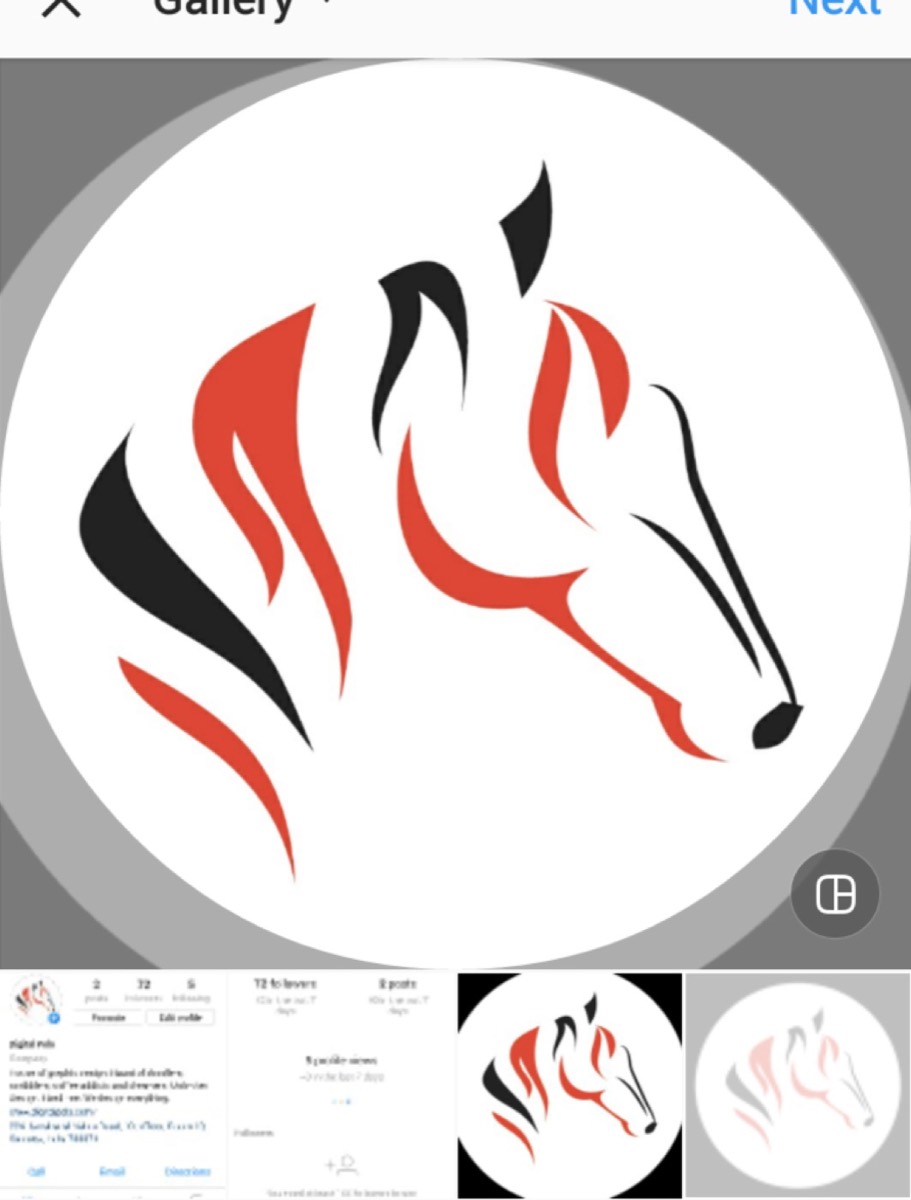
Apps that help you create circular-framed photos include Roundphoto (Android) and Lighto (iOS), both available in their respective app stores.
b) Update Your Bio
Once your audience likes your display picture, they will check out your full profile. A solid bio is the key to holding their attention and making them curious enough to scroll through your grid.
A great bio is short, resourceful, and true to your brand. Keep it relevant to your industry — and depending on the nature of your business, it can be professional or laid back. Following Instagram accounts worth learning from can give you a clear sense of what compelling bios and profiles look like in practice.
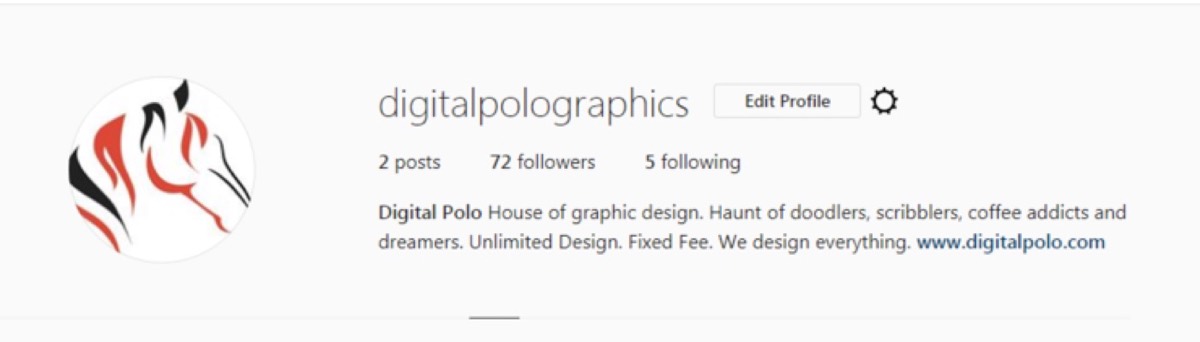
For example, a coffee shop or restaurant has room for humor. A bank or manufacturer does not. Match the tone to your brand voice, and if possible, include a clear Call to Action in the bio space along with the link to your most important landing page.
Need visuals and branding that make your Instagram profile as compelling as your business? See Digital Polo's plans →
Step 4. Switch to an Instagram Business Account
A business account and a personal account are vastly different. As soon as we switched to a business account, we noticed several immediate improvements:
- An Insights icon appeared in the top right corner of the homepage
- Demographic breakdowns by gender became visible
- We could see which regions our audience was coming from
- Post-level insights for impressions, reach, likes, and comments were now available
- We could see how many people had viewed the profile in the past 7 days
- Age group data for viewers was accessible
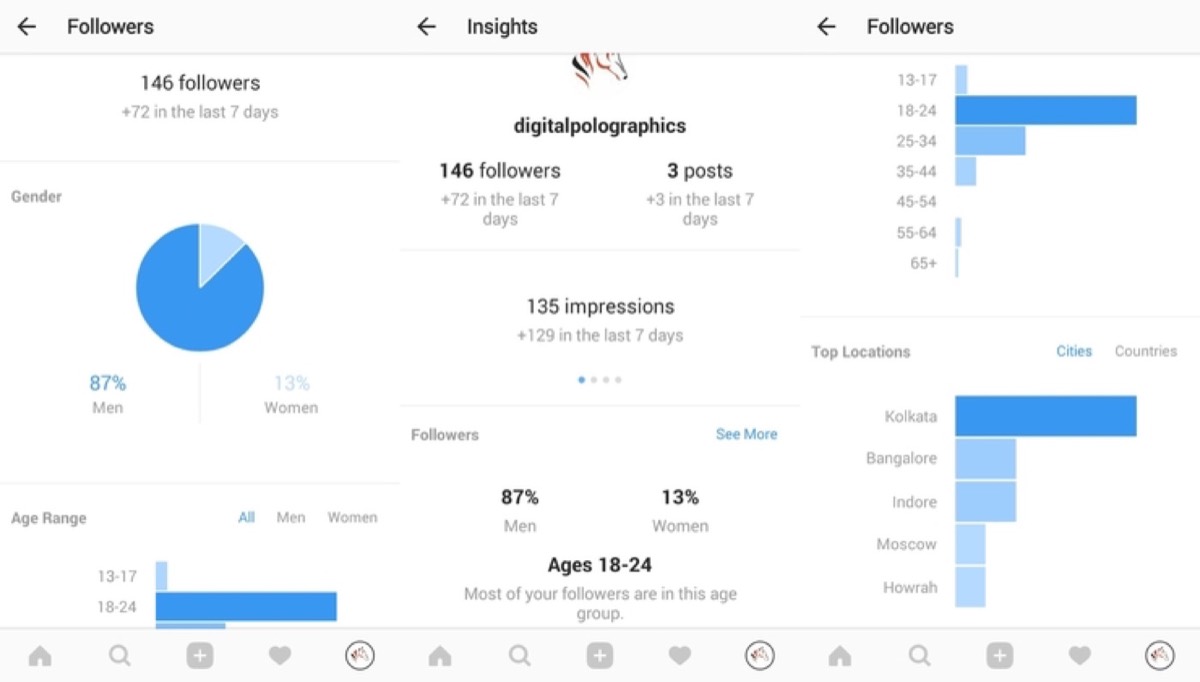
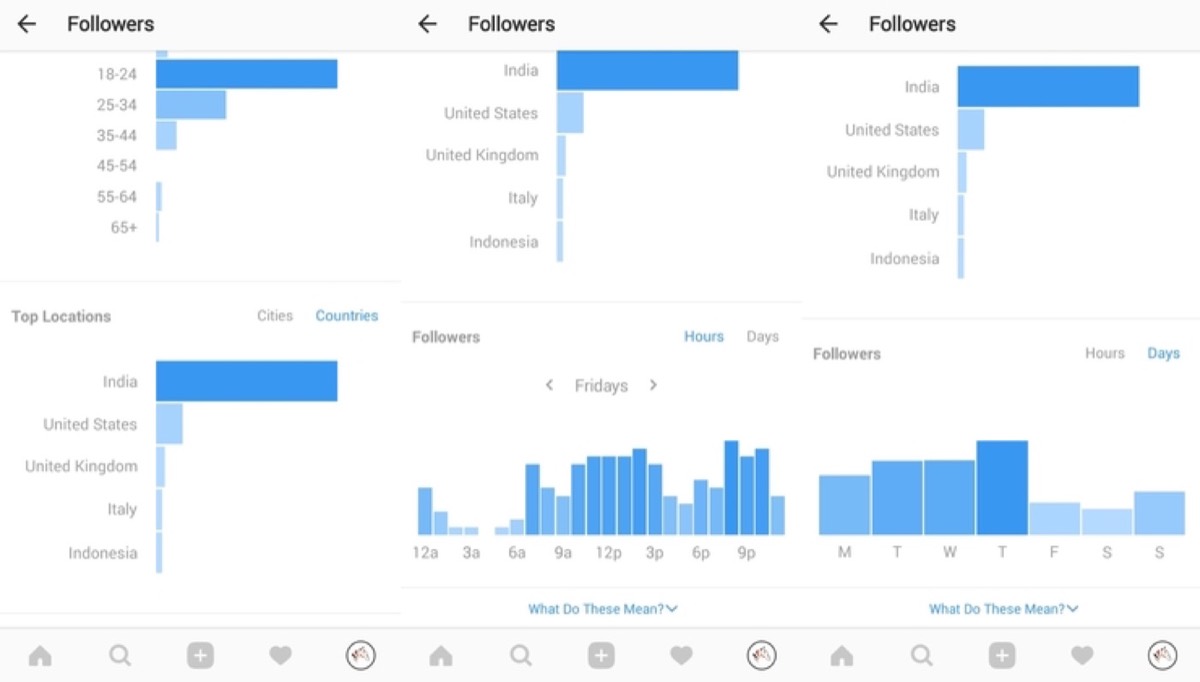
These insights changed the way we approach the platform entirely. With this level of data, you understand exactly who is responding to your content — and can refine your strategy accordingly. Once you have a business account set up, creating Instagram videos for business is one of the most effective next steps for growing reach and engagement.
Prerequisites for a Business Account
To access insights through Instagram's built-in tools (free of charge for all business accounts), you need:
- An Instagram account under your business name
- A Facebook Page for your business
How to Switch to a Business Account
- Log in to your Instagram account
- Go to Settings (three dots in the top right corner)
- Scroll down and select "Switch to Business Profile"
- Tap "Continue" through the guided setup slides
- Connect to your Facebook Page — or create one at this step if needed
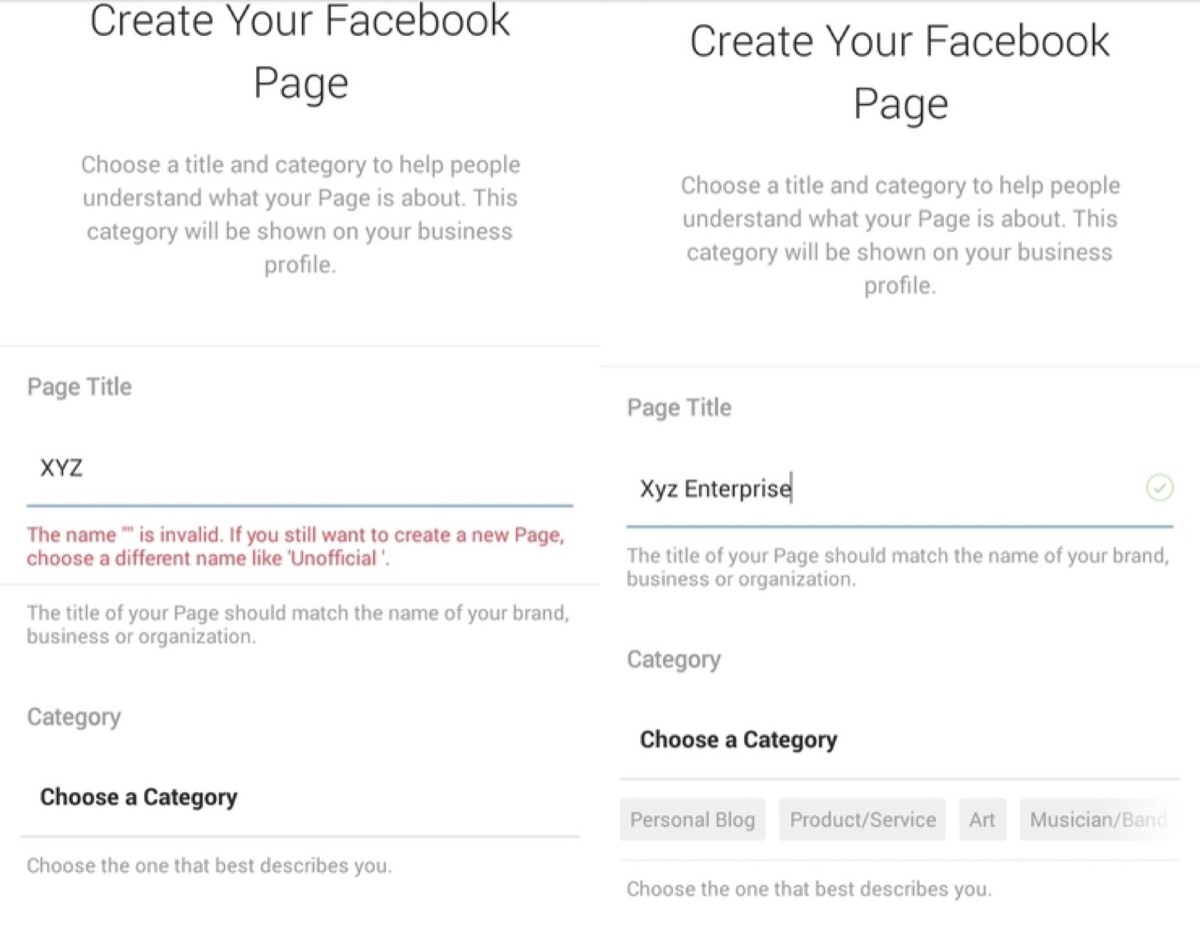
- Add your location, contact number, and email address so your audience can reach you easily
- Your new business profile is ready
Optimizing your Instagram for business is not a one-time task — it is an ongoing process. Start with the fundamentals covered here: a professional profile photo, a bio that communicates your value clearly, and a business account that gives you real audience data to work with.
From there, you can layer in content strategy, hashtag research, and paid promotion. Learning how hashtags can increase your Instagram engagement is a natural next step once your profile foundation is in place. But none of those tactics will work well without a properly optimized foundation. Get the setup right first, and everything that follows becomes far more effective.
Digital Polo creates brand visuals, social media content, and marketing design for one flat monthly fee with unlimited revisions. Start for $399/mo → | Soulmate at $899/mo →
Frequently Asked Questions About Instagram for Business
What is the difference between a personal and a business Instagram account? A business account gives you access to Instagram Insights — detailed analytics on your audience demographics, post performance, reach, and impressions. You can also add contact buttons (email, phone, address) to your profile and run paid ads. Personal accounts do not have these features.
Do I need a Facebook Page to set up an Instagram business account? Yes, at the time of setup, Instagram requires you to connect a Facebook Page to activate the business profile. You can create a new Facebook Page during the Instagram setup process if you do not already have one.
What should I put in my Instagram bio for a business? Your bio should clearly state what you do, who you serve, and include a call to action. Keep it under 150 characters, use relevant keywords where natural, and always include a link to your most important landing page — whether that is your website, a product page, or a booking form.
How does switching to a business account affect my reach? Switching to a business account does not negatively impact organic reach. In fact, having access to Insights means you can see which posts are performing and double down on what works — which typically improves reach over time.
How often should a business post on Instagram? Consistency matters more than frequency. Posting 4–5 times per week is a strong baseline for most businesses. Posting high-quality content less often is always better than posting mediocre content daily. Use your Insights data to identify when your audience is most active and schedule posts accordingly.